JAMB CAPS Login: How to Check Your Admission Status (2027 Guide)
How to log in to JAMB CAPS on your phone, check your admission status and understand what "Not Admitted", "Admission in Progress" and "Recommended" mean.

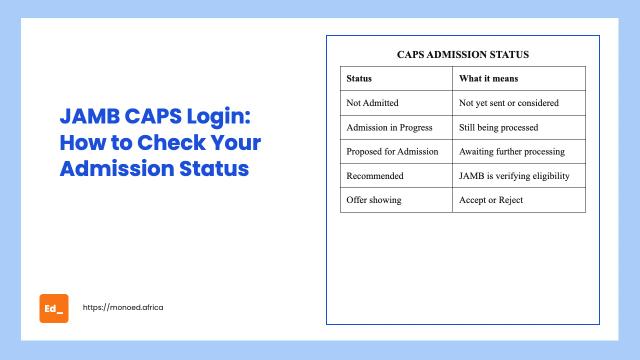
JAMB CAPS (Central Admissions Processing System) is where every university, polytechnic and college of education sends its admission offers. Even if your school publishes an admission list on its own portal, your admission is not complete until it shows on CAPS and you accept it there.
This guide shows you how to log in, where to find your status and what each status means. Schools are still processing 2026/2027 admissions on CAPS, and the same steps apply when 2027/2028 admissions open after UTME 2027.
What you need before you start
| Item | Why you need it |
|---|---|
| The email you used for JAMB registration | It is your e-Facility username |
| Your e-Facility password | You created it during registration |
| Your JAMB registration number | Some pages ask for it |
| A phone or laptop with data | CAPS works in a normal browser |
If you forgot your password, use the "Forgot password" link on the login page. The reset link goes to your registered email, so make sure you can still open that email.
How to log in to JAMB CAPS (step by step)
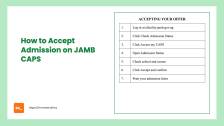
- Open efacility.jamb.gov.ng in Chrome or any browser.
- Enter your registered email and password, then click Login.
- On your dashboard, click Check Admission Status.
- Select the exam year and enter your registration number if asked, then continue.
- Click Access my CAPS.
- On the CAPS page, open Admission Status to see your current status.
Tip: if the page keeps loading, try again early in the morning or late at night. CAPS gets very slow when many schools release lists at the same time.
What each CAPS status means
JAMB explained these statuses on its official X account in September 2026:
| Status | What it means | What to do |
|---|---|---|
| Not Admitted | Your school has not sent your admission details to JAMB yet, or you have not been considered yet | Keep checking. It is not a final rejection |
| Admission in Progress | Your admission is being processed and has not been concluded | Keep checking and make sure your O'Level is uploaded |
| Proposed for Admission | Admission has been proposed and is awaiting further processing | Wait. JAMB is still verifying |
| Recommended | JAMB has received your details from the school and is checking your eligibility | Not final yet. Keep checking |
| Admitted / offer showing | You have an offer you can accept or reject | Decide quickly and follow how to accept admission on JAMB CAPS |
Statuses can move backwards. The most common reason is a missing or wrong O'Level result, so check that part of your profile first.
Check these three things if your status is not moving
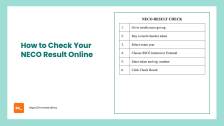
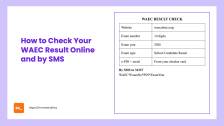
- O'Level upload. On CAPS, open the O'Level section and confirm your WAEC, NECO or NABTEB result is there with the right subjects. If you are still waiting for results, see how to check your WAEC result or how to check your NECO result.
- Your school's own portal. Many schools publish lists on their portal before CAPS updates. Check both.
- Course transfer offers. If your school offers you a different course, it shows under Transfer Approval, not under Admission Status. Many students miss this.
Common problems and fixes
- "Invalid login": you are using a different email from the one used during registration. Use the email on your registration slip.
- No email for password reset: check spam. If you no longer use that email, visit a JAMB office or accredited CBT centre for help.
- Status says Admitted on the school portal but Not Admitted on CAPS: wait a few days. The school has to upload to CAPS, and JAMB has to approve.
- CAPS shows a course you did not apply for: that is a transfer offer. Read it carefully before you accept.
After admission: plan your first year early
Once you are admitted, your CGPA starts counting from your first semester. Students who know how grade points work from day one find it easier to stay on track for a good class of degree. Our free CGPA calculator shows your GPA and class of degree as you go.
Useful reads for new students: things to take to university as a fresher, how to survive your first year and how to calculate CGPA in 100 level.
Frequently Asked Questions
How do I check my JAMB admission status on my phone?
Open efacility.jamb.gov.ng in your phone browser, log in with your JAMB email and password, click "Check Admission Status", then "Access my CAPS".
What does "Not Admitted" mean on JAMB CAPS?
It usually means your school has not sent your details to JAMB yet, or you have not been considered yet. It is not a final rejection, so keep checking.
What does "Admission in Progress" mean?
Your admission is still being processed. Make sure your O'Level result is uploaded, and keep checking for updates.
Can I check JAMB CAPS without a password?
To accept an offer you must log in to e-Facility. If you forgot your password, reset it through your registered email.
Why can't I see Accept or Reject buttons?
The buttons only become active when a school has offered you admission and JAMB has processed it. Until then they stay grey.
About the Author
Mohammad-Jamiu B. Balogun, GMNSE
Founder & Product Architect, MonoEd Africa
Mohammad-Jamiu is a First-Class Telecommunications Engineer and Best Graduating Student of Bayero University, Kano (Class of 2024), and the founder of MonoEd Africa. An AI engineer and product architect, he designs and builds MonoEd's guided workflows for SIWES logbooks and reports, final year projects and academic tools such as the GPA calculator, helping students produce better work and build the skills the AI era demands. MonoEd's tools have reached more than 20,000 students across Nigeria.