How to Use the MonoEd FYP Generator: Step-by-Step Guide From Topic to Defence (2027)
Step-by-step guide to the MonoEd FYP generator on your phone: topic, research, Chapters 1 to 5, your Chapter 4 results, corrections, Word file and defence prep.

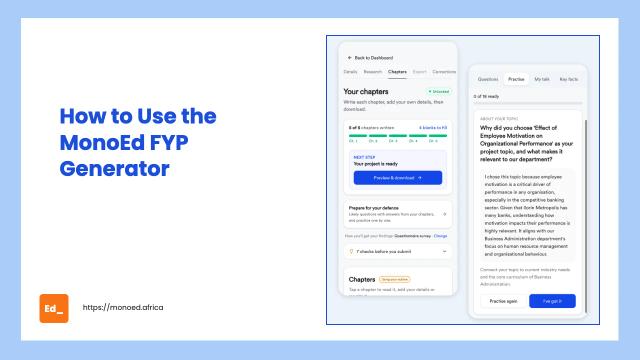
This guide walks you through the whole MonoEd final year project generator, one screen at a time, from typing your topic to practising for your defence.
Every screenshot was taken on a phone, because that is how most students use it. We follow one example project all the way through:
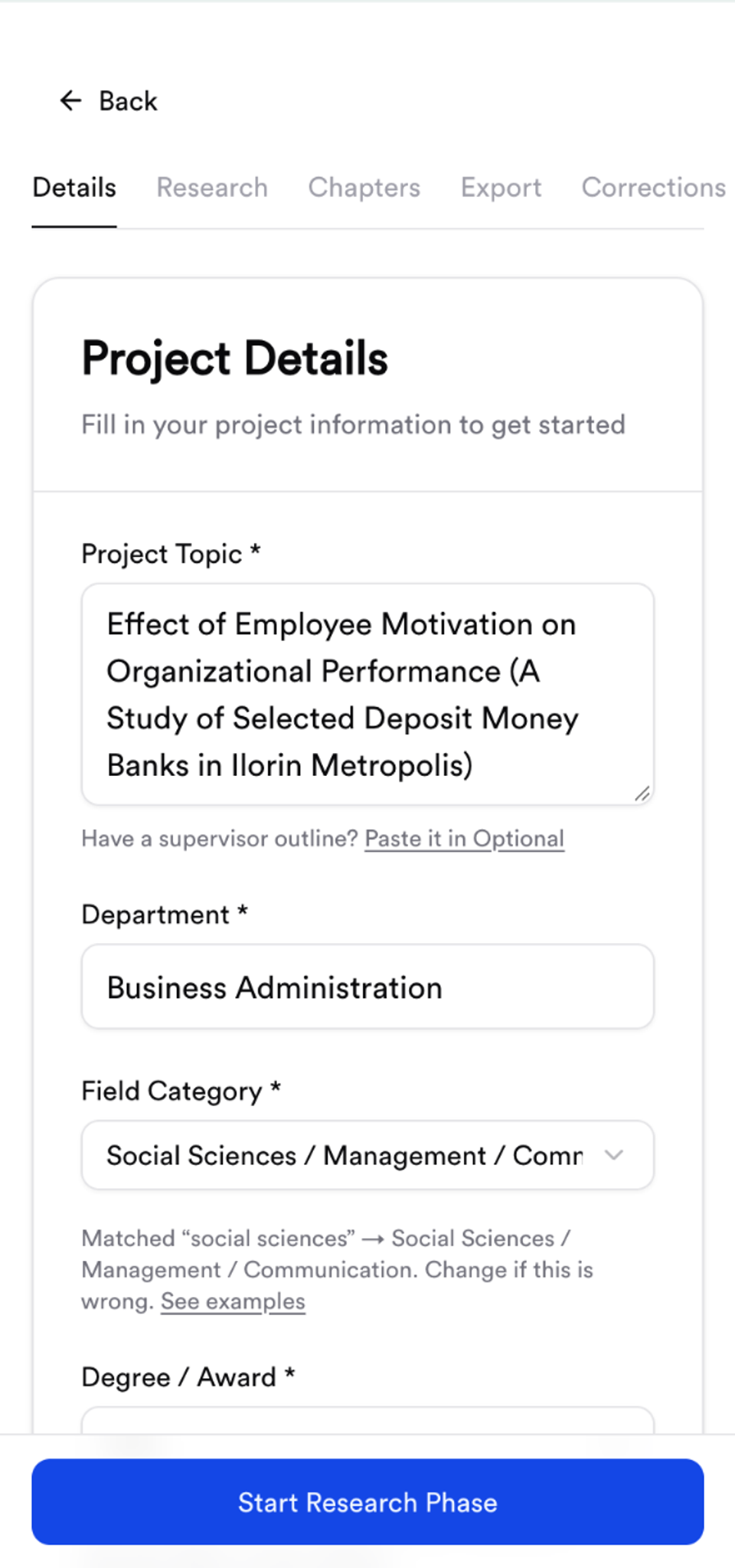
"Effect of Employee Motivation on Organizational Performance (A Study of Selected Deposit Money Banks in Ilorin Metropolis)", Business Administration, Kwara State University, Malete. It is a questionnaire survey, the most common kind of project in Nigeria.
If your department is different, the steps are the same. The section near the end shows what changes for Education, Business and Accounting, Nursing and Public Health, and Computer Science.
What you need before you start
- Your approved topic (or the one you want to discuss with your supervisor)
- Your department, school and degree (B.Sc, B.Ed, HND and so on)
- Your name and matric number, for the title page
- Your supervisor's outline or chapter headings, if they gave you one
- Your school logo, if you want it on the title page
You don't need a laptop. Everything below works on your phone.
The steps at a glance
- Start a project and enter your topic
- Choose how you'll get your findings
- Check the research papers
- Write Chapters 1 and 2 (free)
- Chapter 3: see what data you need
- Chapter 4: add your results
- Chapter 5 and the abstract
- Fix your supervisor's corrections
- Choose your page format and download the Word file
- Make your defence slides
- Practise for your defence
Step 1: Start a project and enter your topic
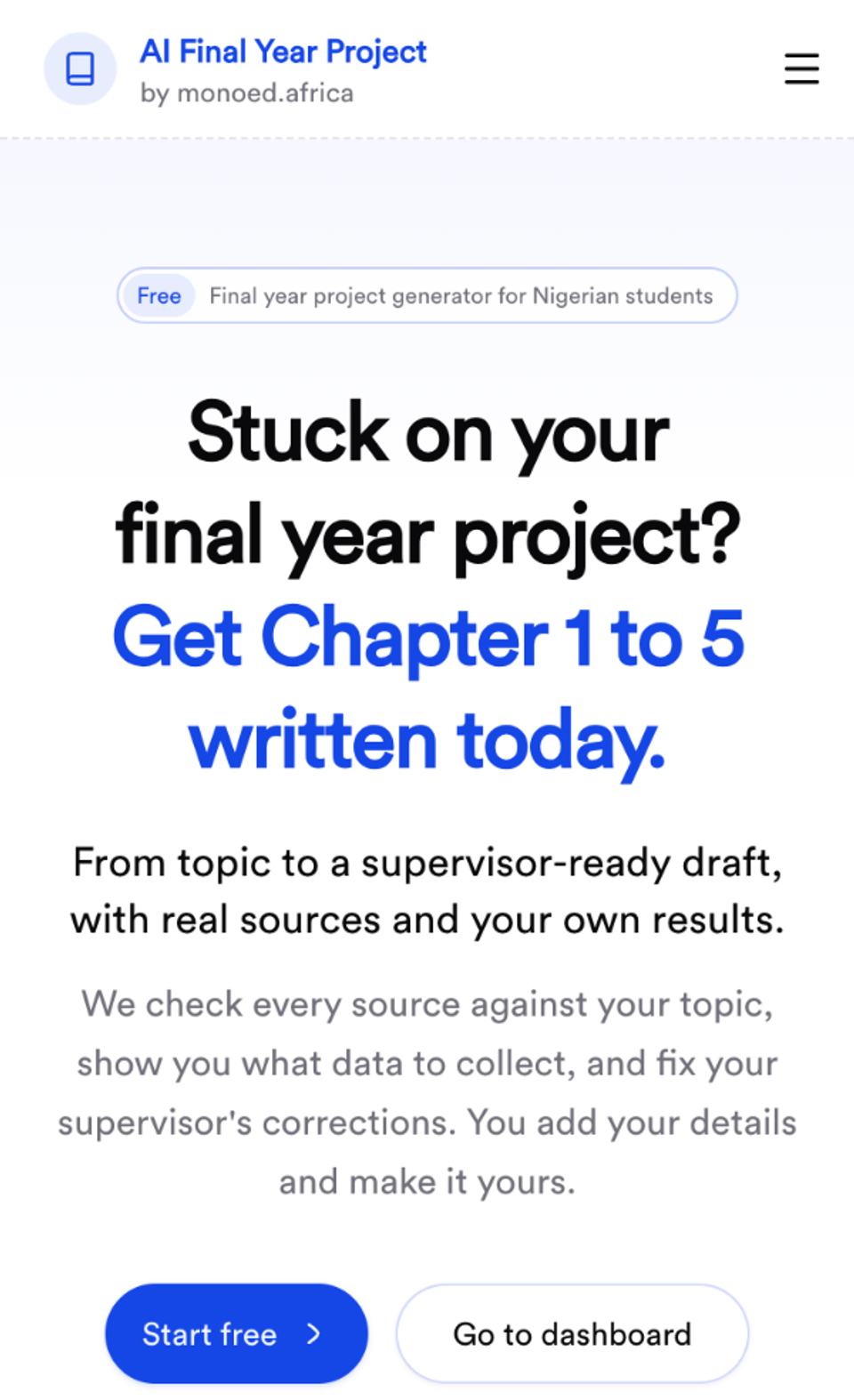
Go to fyp.monoed.africa and tap Start free. Sign in with your Gmail account so your chapters are saved and you can come back from any phone.
On the Project Details page, type your topic exactly as approved and your department. MonoEd FYP picks your field from the department (here, Social Sciences / Management / Communication). If it picks the wrong one, change it.
Has your supervisor given you an outline? Tap Paste it in under the topic. Your chapters will then follow your supervisor's headings, in the Word file too.
Step 2: Choose how you'll get your findings
Further down the form, How you'll get your findings asks what kind of study you are doing. For our example that is Questionnaire survey.
The choices change with your field. A Social Sciences student sees options like existing CBN or NBS data, a class experiment, content analysis or interviews. An engineering student sees building a device, lab testing or simulation.
Not sure? Leave it on Not sure, choose from my topic and MonoEd FYP picks one. You can change it later from the Chapters page.
Then fill in your institution, name, matric number, faculty (optional) and supervisor (optional). These go on your title page.
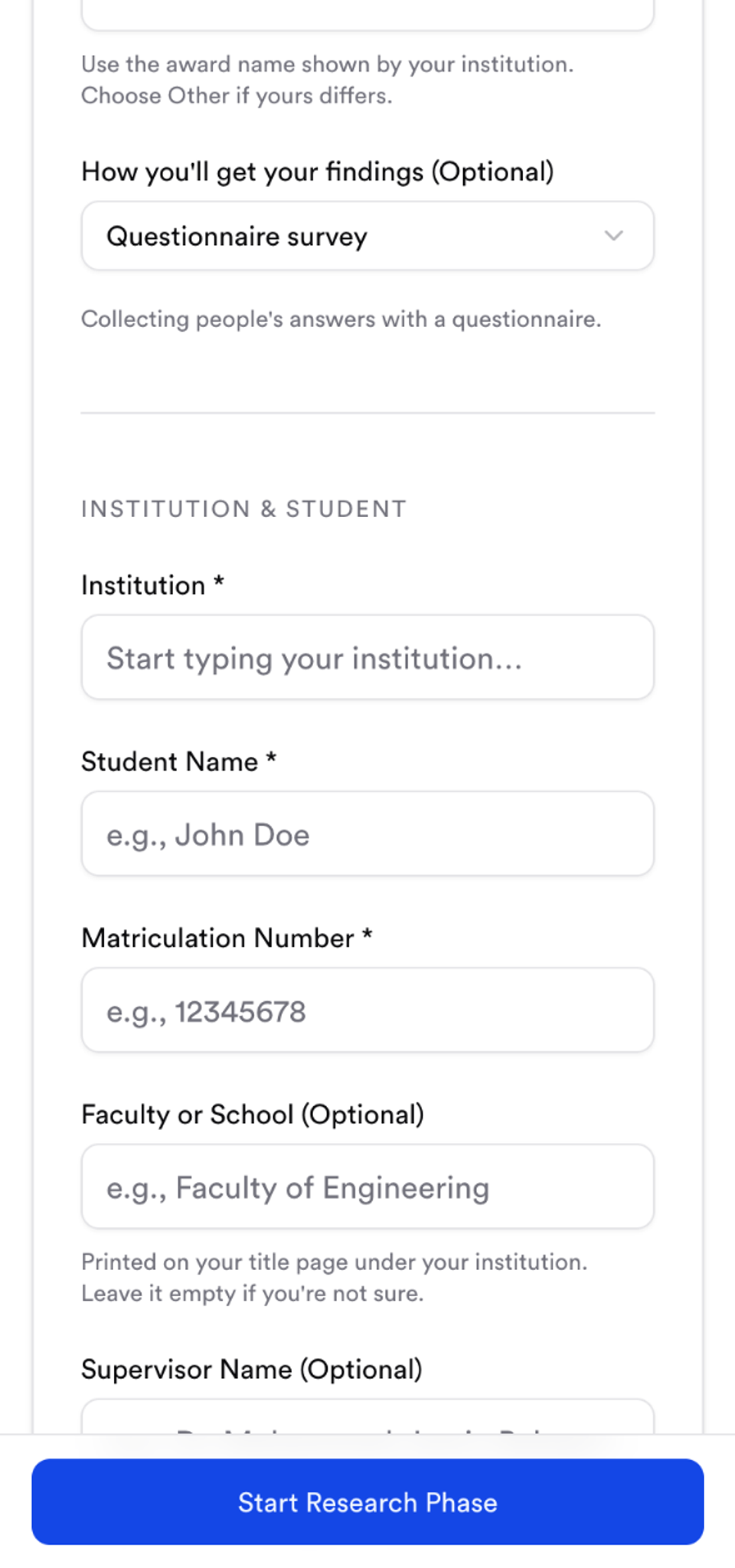
Tap Start Research Phase.
Step 3: Check the research papers
Before anything is written, MonoEd FYP searches for published papers on your topic, checks the best ones against what your project is about and keeps only those that fit. This takes about a minute.
You'll see the list: title, authors, journal and year, with Open to read each paper at its source. For our example it kept 28 papers, several of them about Nigerian banks.
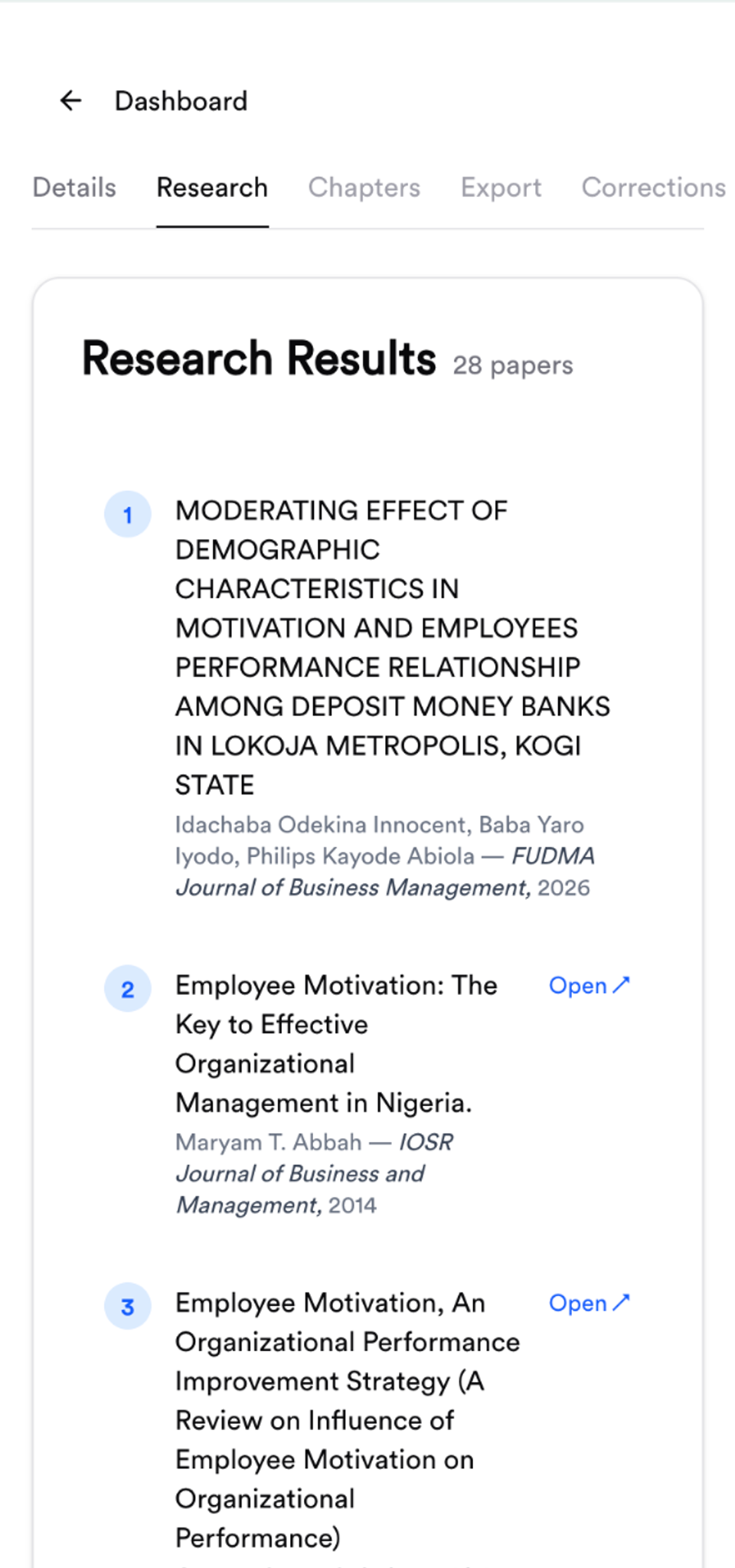
Your chapters cite only these papers. If your supervisor gave you papers to use, add them too from the references list on the Chapters page.
Step 4: Write Chapters 1 and 2 (free)
The Chapters page is your home for the rest of the project. The card at the top shows how far you are and the one thing to do next.
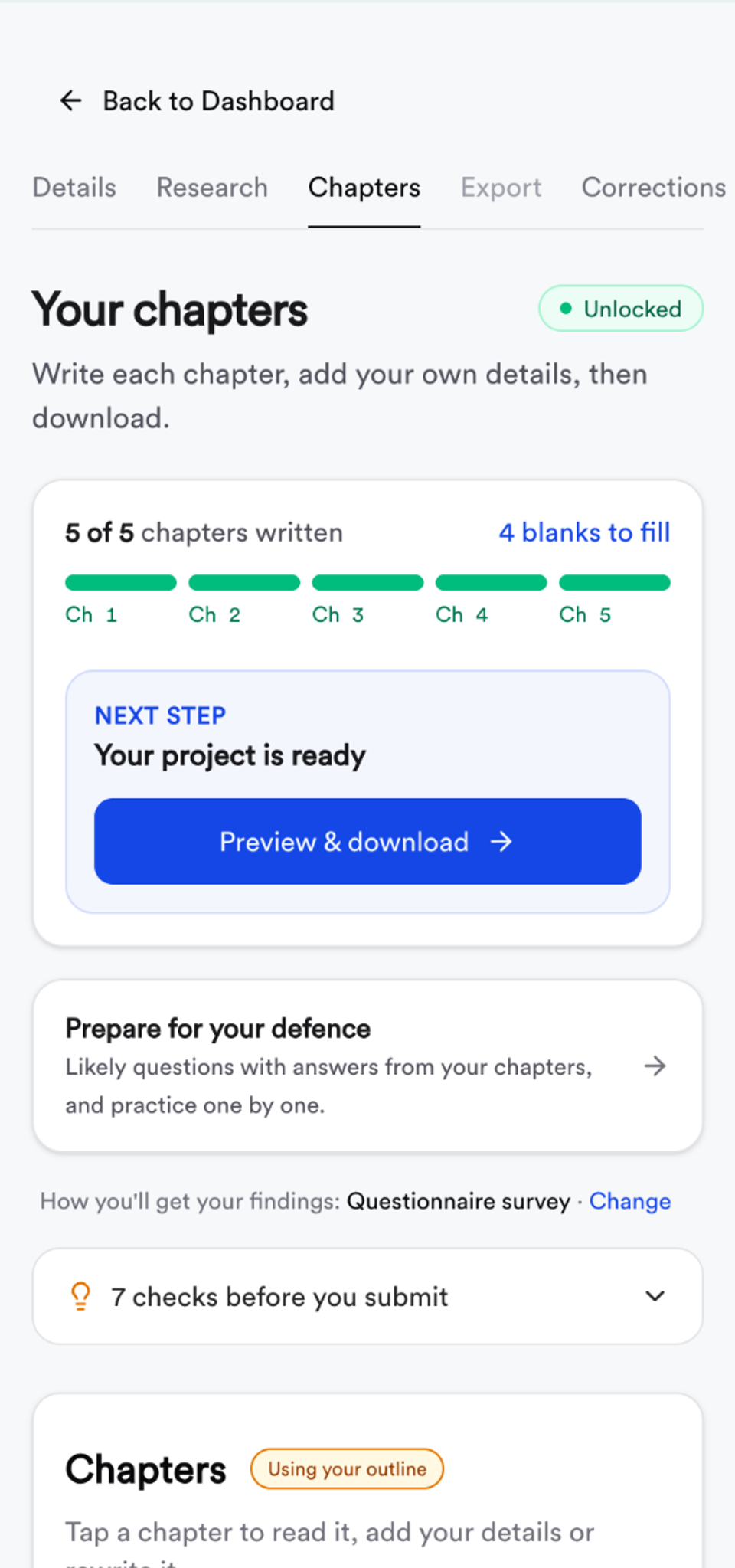
Tap Write Chapter 1. Each chapter takes about a minute and you can watch it being written. Chapters 1 and 2 are free to write and read online.
Tap any written chapter to read it. Under each chapter you have four ways to change it:
- Rewrite with my instructions: tell it what to change, such as "make the objectives four, not five"
- Rewrite now: write the whole chapter again (3 rewrites per chapter)
- Edit the text yourself: fix a word or a sentence directly
- Edited in Word? Upload your latest version: if you changed the chapter in Word, upload it so MonoEd FYP works from your version
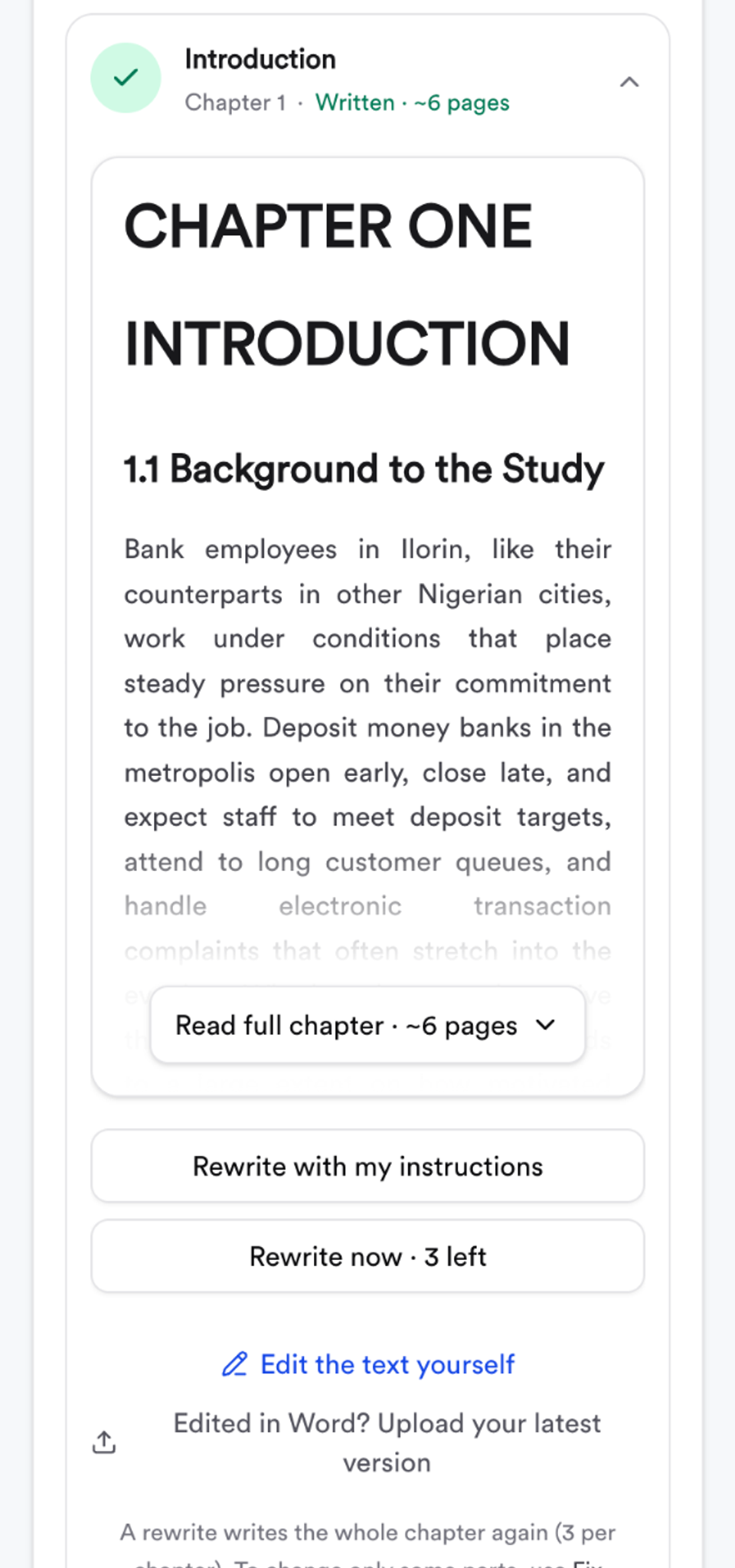
Read every chapter before you show your supervisor. Places that need your own details are marked so you can find them.
Step 5: Chapter 3: see what data you need
Chapters 3 to 5 come with the unlock (see "What's free and what you pay for" below).
Most students get stuck on Chapter 3 because they don't know what to collect. Open Chapter 3 and tap What data do I need? MonoEd FYP reads your topic and tells you, in plain words:
- what the project needs, in short
- who to collect it from, and how to choose them
- each piece of data, one card at a time
- what to keep in mind, such as getting permission and consent
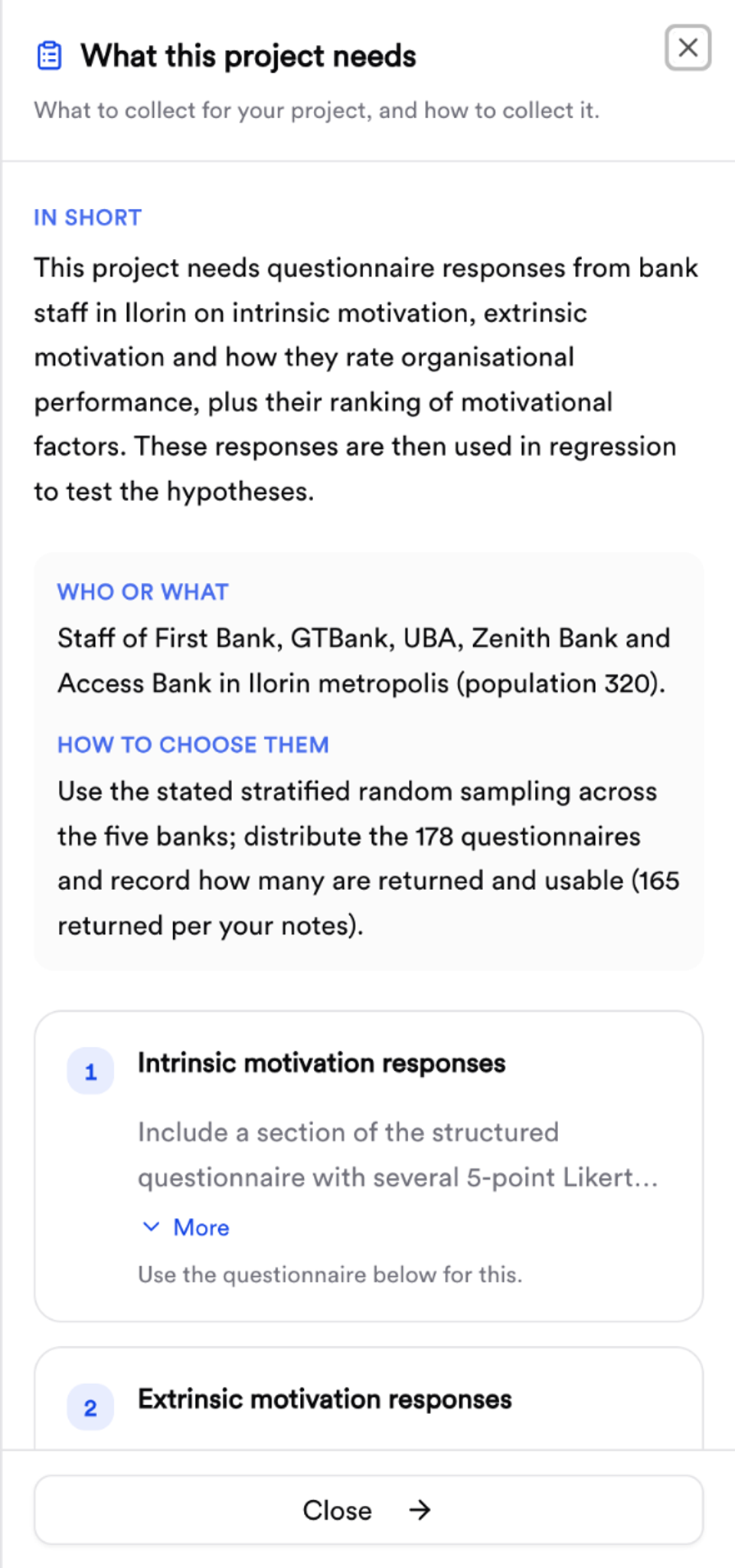
If you don't have a questionnaire yet, the same screen offers Generate and review a questionnaire. Read it, change what you like, then use it.
Chapter 3 also asks a few questions about your study, such as your population, sample and instrument. Answer what you know. If you're not sure of a number yet, leave it and come back. MonoEd FYP works out your sample size with the Taro Yamane formula from your real population. For our example, 320 bank staff gave a sample of 178.
Step 6: Chapter 4: add your results
This is where MonoEd FYP is different from a general chatbot. It does not invent your results. Chapter 4 is written with marked places for your real figures, and you fill them in once your questionnaires are back.
Open Chapter 4. The blue box tells you how many places are waiting for your results.
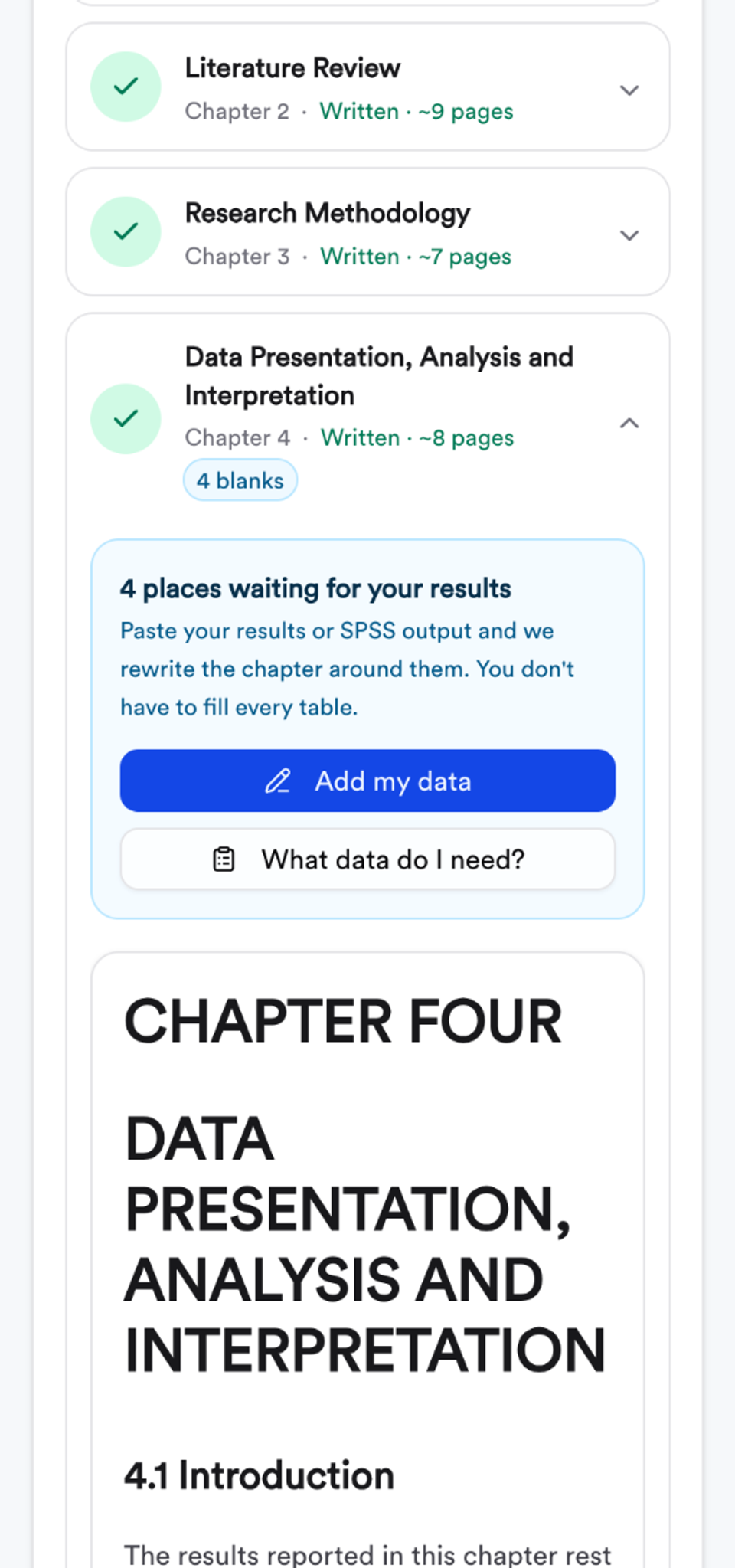
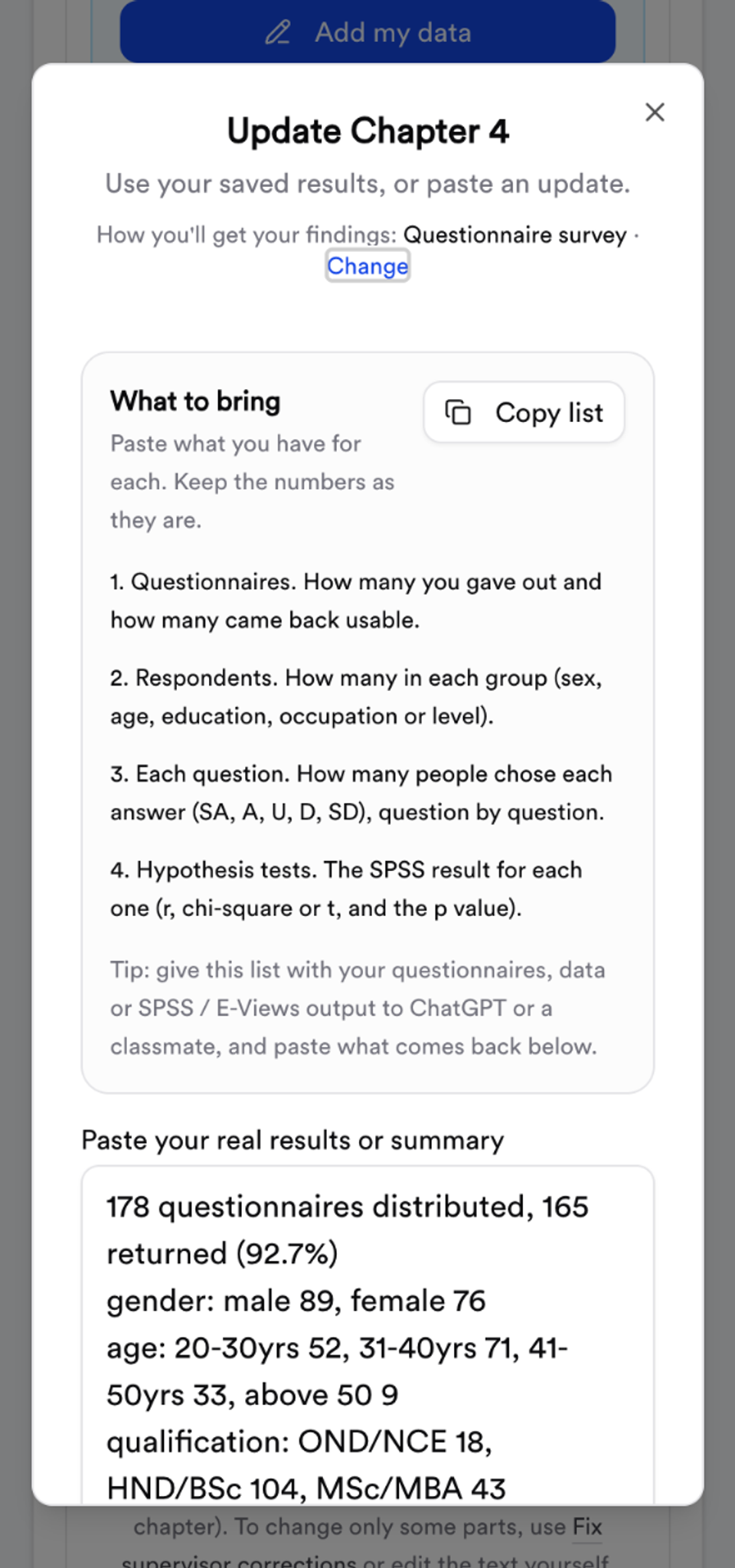
Tap Add my data. You get two ways to add your results.
Paste my results. The What to bring list tells you exactly what to count: questionnaires given out and returned, how many people are in each group, how many chose SA, A, U, D or SD for each statement, and your SPSS result for each hypothesis. Paste what you have, even straight from your notes or SPSS output.
Fill in the tables. Your Chapter 4 tables are laid out as a form. Type only what you counted. The grey boxes fill themselves in:
- percentages and response rates
- the mean and standard deviation for each Likert statement
- the decision (Accept or Reject), using a cut-off of 3.0 on a 5-point scale or 2.50 on a 4-point scale
- the decision on each hypothesis from your p value (at 0.05)
In the screenshot below, typing 71, 58, 9, 15 and 12 for the first statement gave a mean of 3.98, a standard deviation of 1.23 and "Accept".
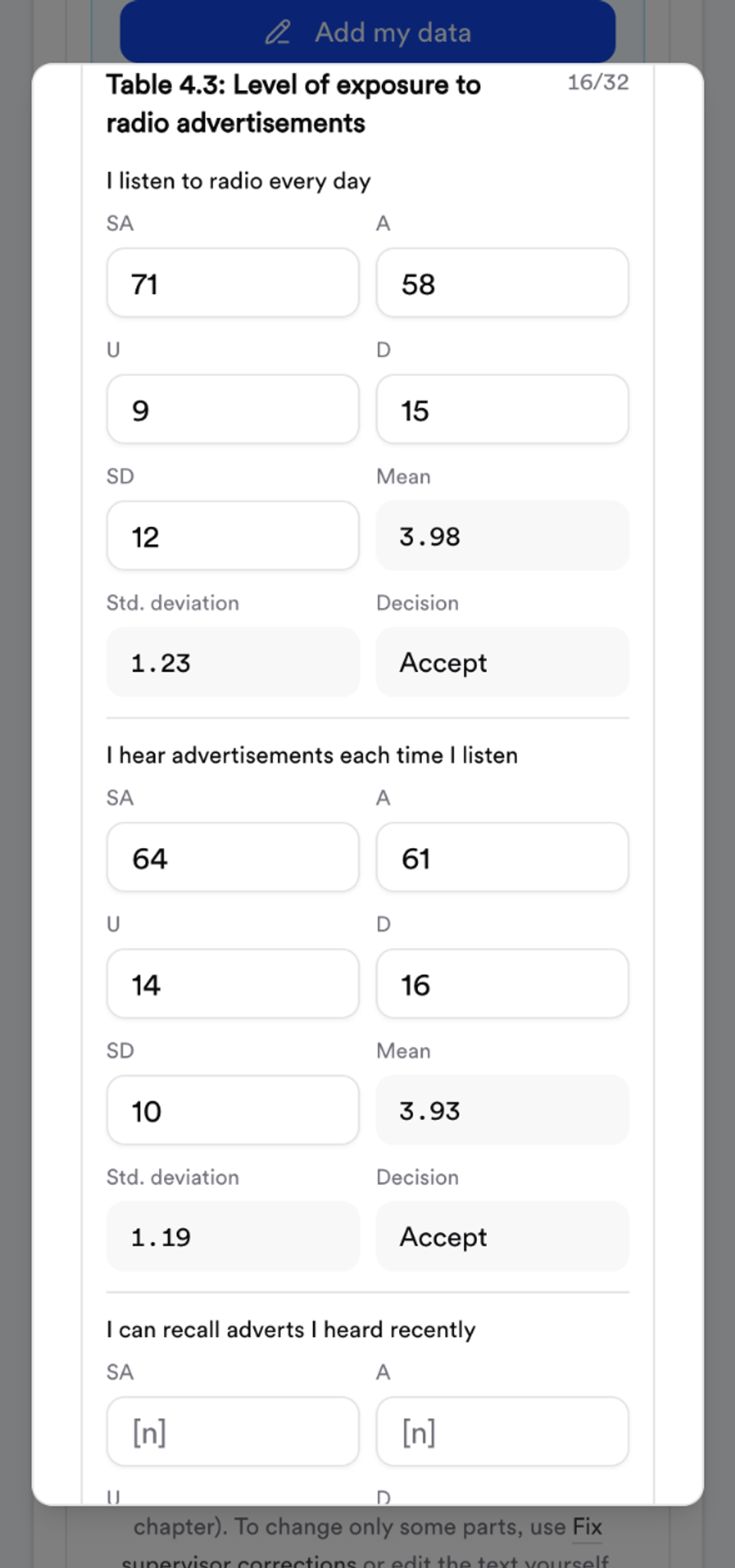
(This table is from another test project, a radio advertising survey, because our bank example's results were pasted.)
Then tap Update Chapter 4 with my results. The chapter is written again around your figures. You get 3 results updates, so if your supervisor finds a wrong count, you can fix it.
Don't have every figure yet? You don't have to fill every table. Add what you have now and the rest later.
Step 7: Chapter 5 and the abstract
Chapter 5 (summary, conclusion and recommendations) is written from your Chapters 1 to 4, so write it after your results are in. That way your recommendations follow your real findings.
When all five chapters are done, tap Regenerate Abstract on the Chapters page so your abstract matches the final project.
If you change your results or your method later, the Chapters page tells you which chapters need a quick check and offers to update them.
Step 8: Fix your supervisor's corrections
Corrections are normal. Most students go through two or three rounds. Tap Corrections at the top of any project page to open Supervisor Fix Mode.
- If you edited your chapters in Word after downloading, upload that file first, so your fixes go into the version your supervisor actually read.
- Paste your supervisor's comments, or add up to 4 photos of the marked pages.
- Tap Make my checklist. Each comment becomes one item you can fix and tick off.
- Check your project and download it again.
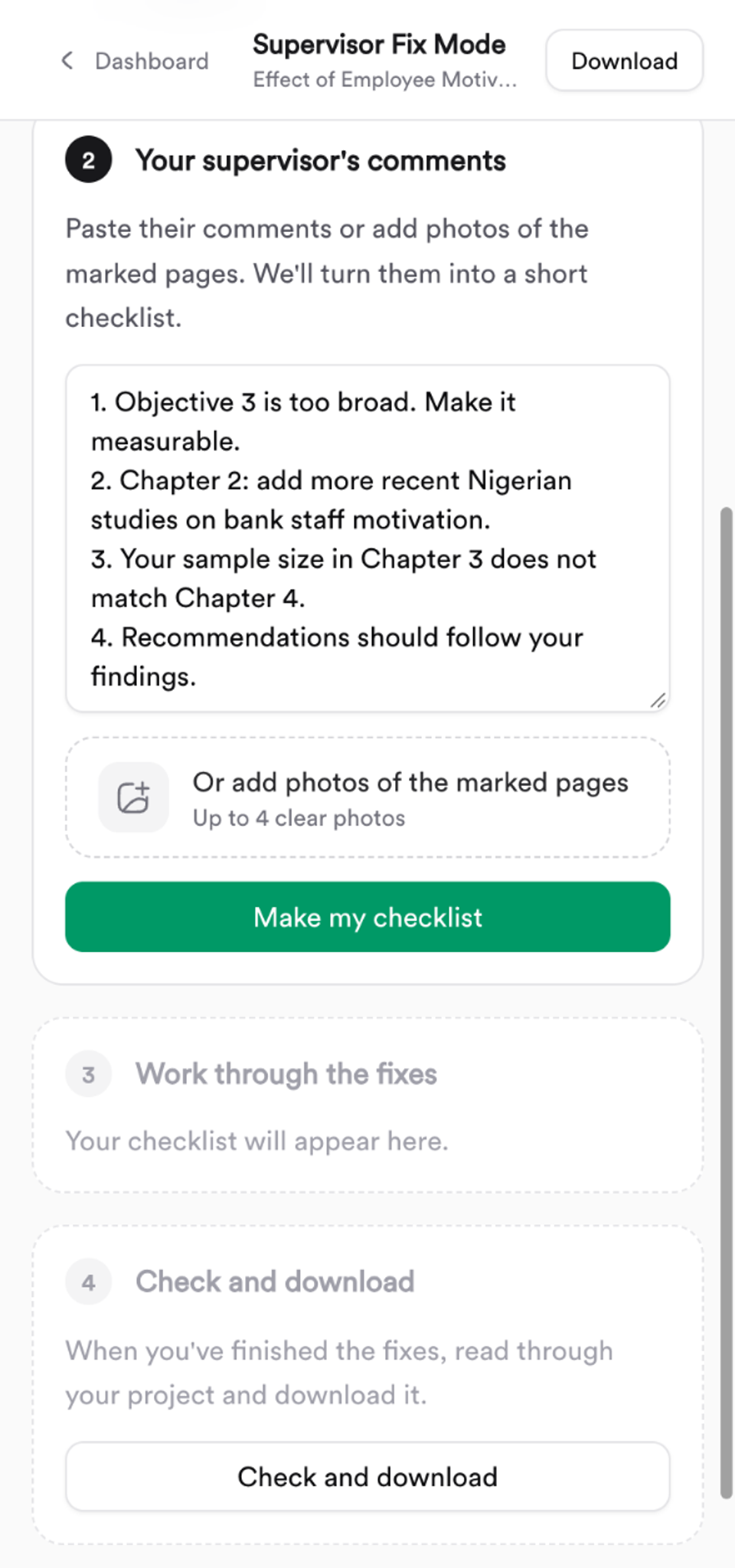
Only the parts your supervisor flagged are rewritten. The rest of your chapter stays as it was.
For more on handling corrections, see how to handle supervisor corrections.
Step 9: Choose your page format and download the Word file
Tap Export. The top card shows your project at a glance: chapters written, pages in Word, references, and anything still to check before you submit.
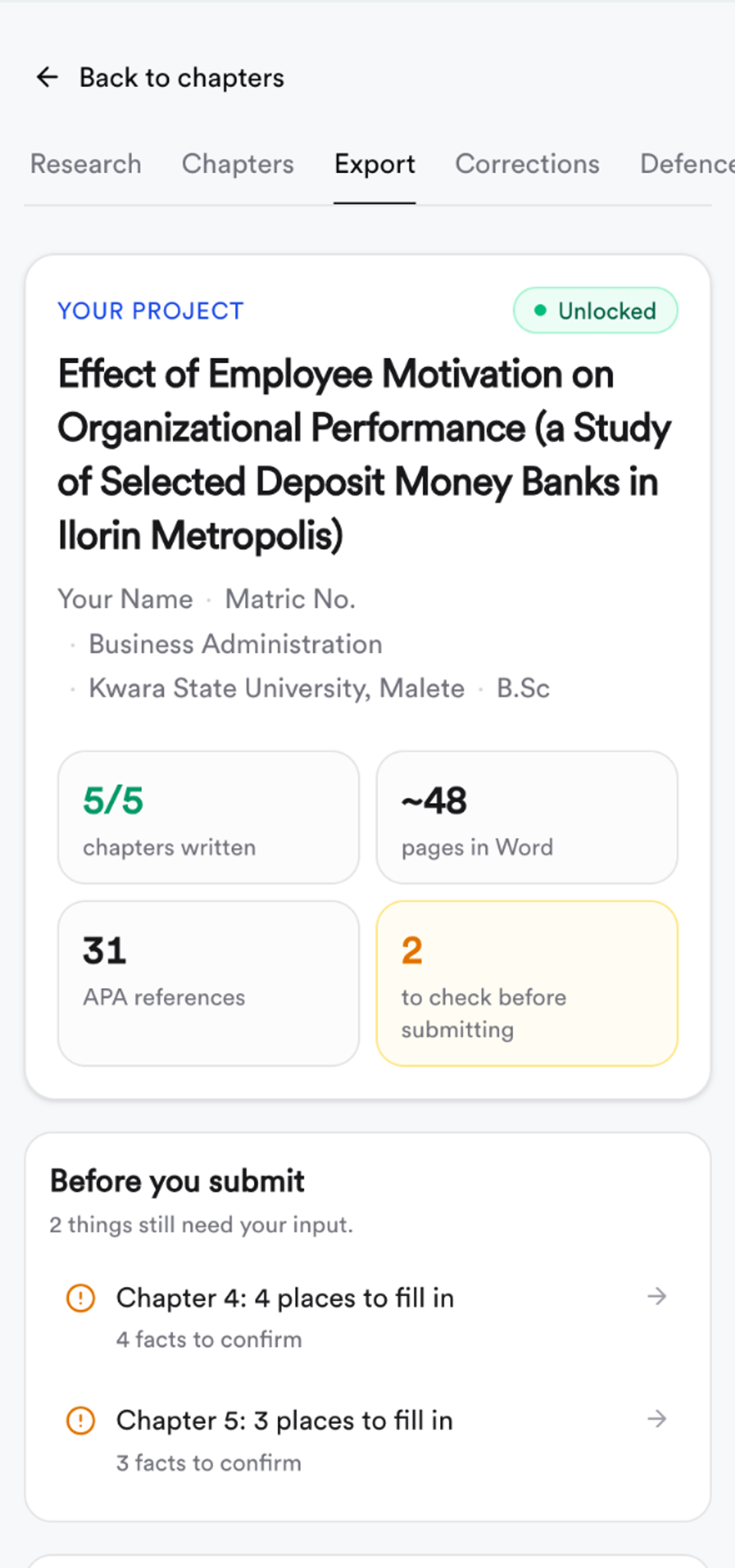
Below it:
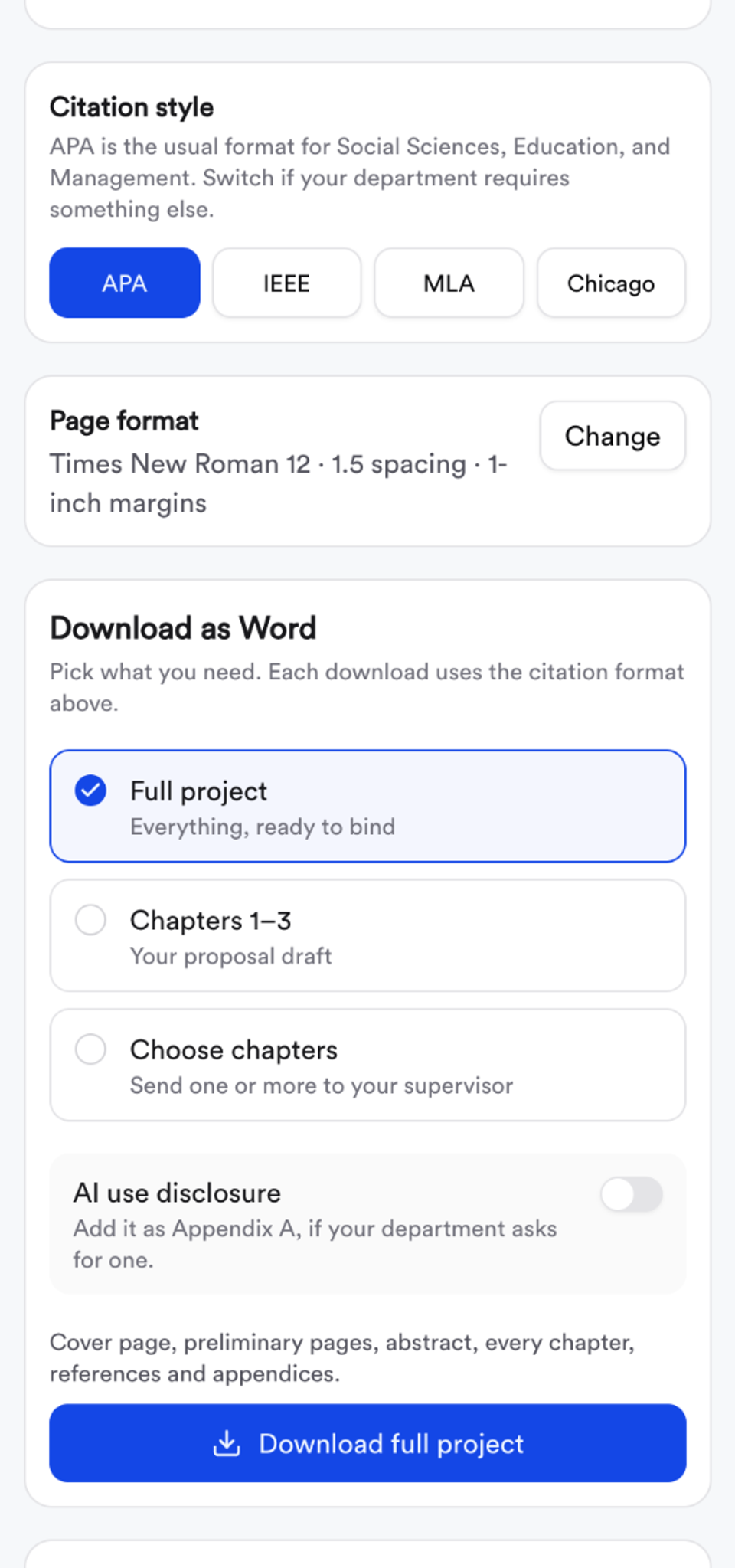
- Citation style: APA, IEEE, MLA or Chicago. APA is usual for Social Sciences, Education and Management.
- Page format: the font, spacing and margins of your Word file.
- Download as Word: the full project ready to bind, Chapters 1 to 3 as your proposal, or only the chapters you choose to send your supervisor. You can also add an AI use disclosure as Appendix A if your department asks for one.
Set the format your department asks for. Tap Change next to Page format. There are three ready formats:
- Standard: Times New Roman 12, 1.5 line spacing, 1-inch margins
- Double spacing: Times New Roman 12, double line spacing, 1-inch margins
- Binding margin: Times New Roman 12, double line spacing, 1.5-inch left margin for binding
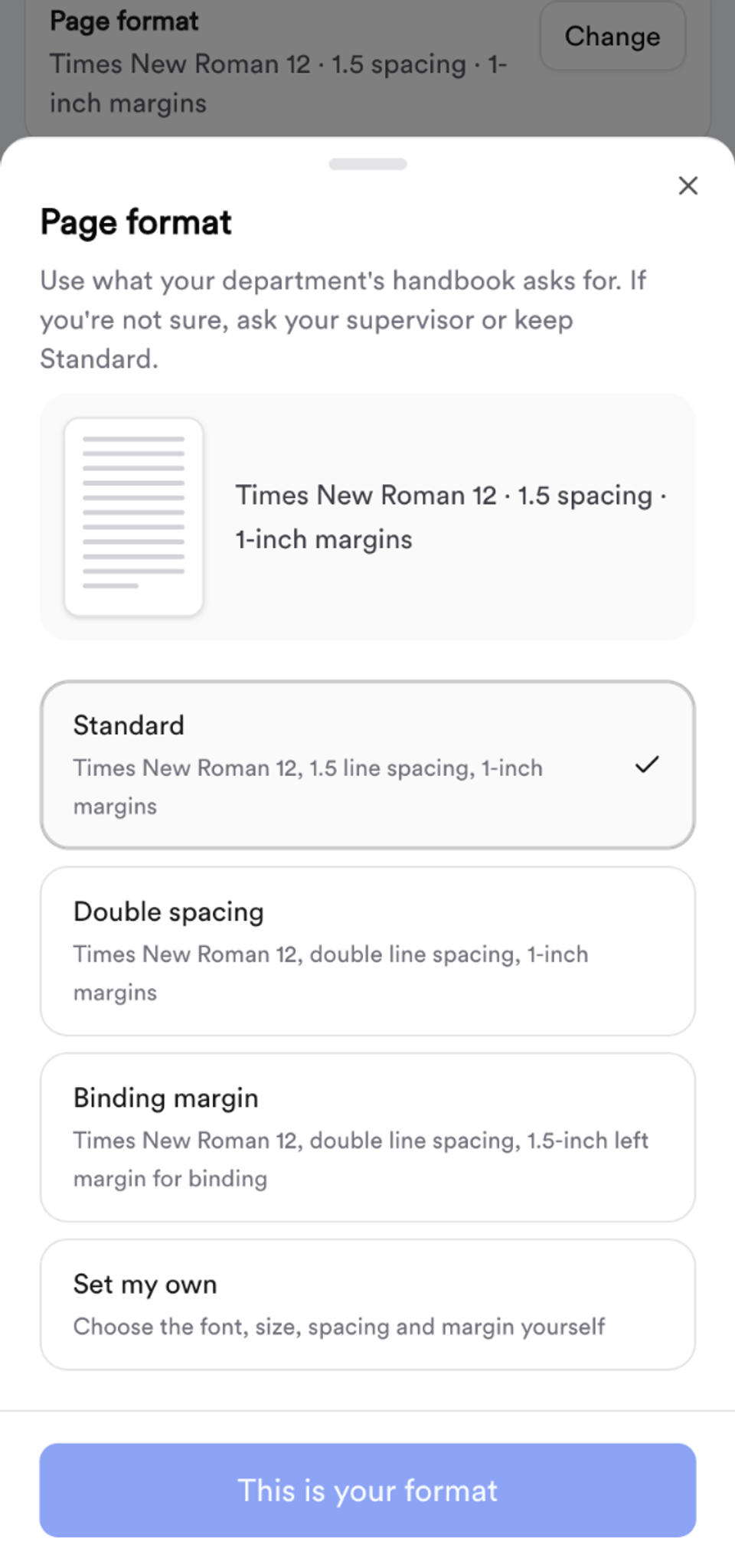
If your handbook asks for something else, tap Set my own and pick the font (Times, Arial or Calibri), size (11, 12 or 14), line spacing (single, 1.15, 1.5 or double), left margin (1, 1.25 or 1.5 inches) and whether the text is justified or left aligned.
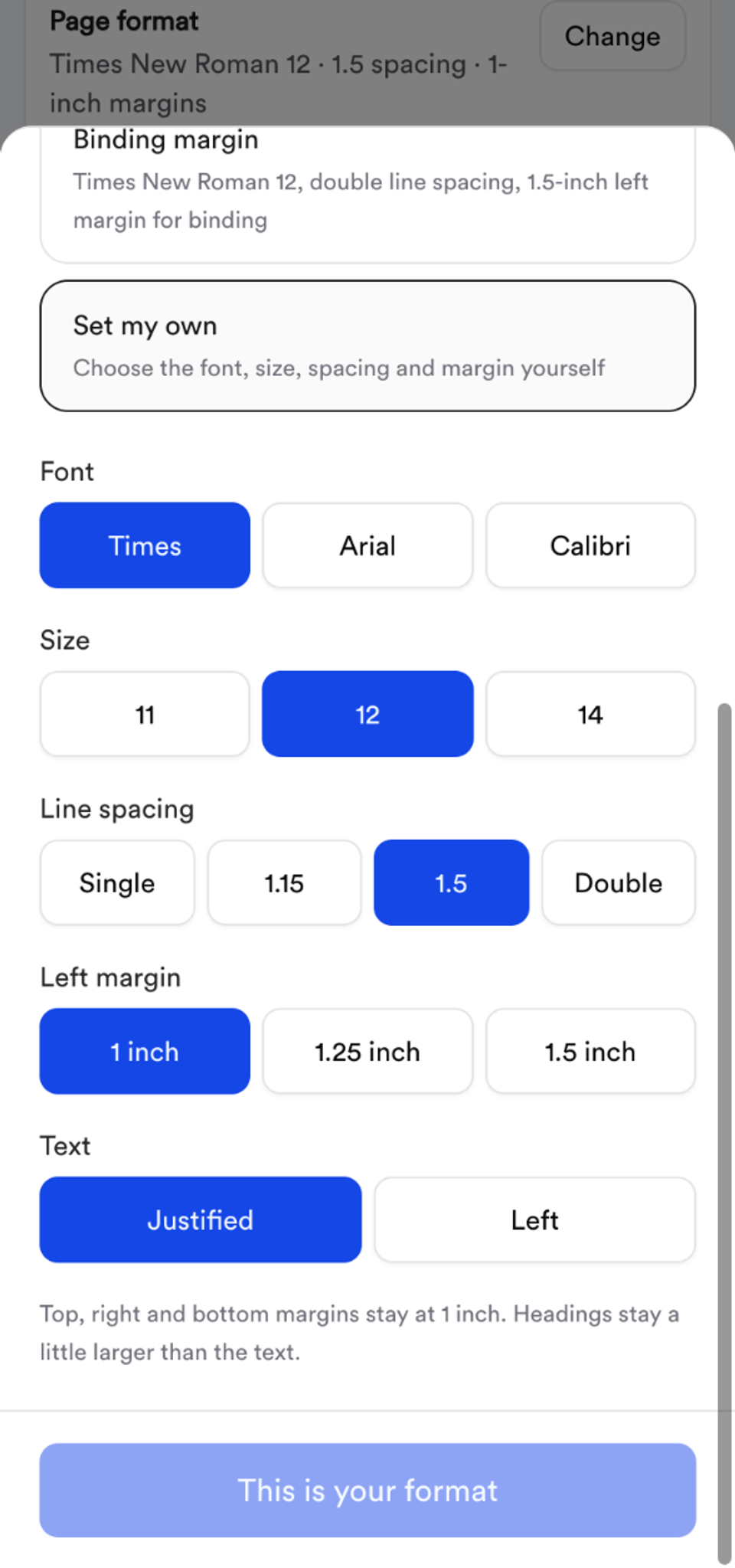
Your Word file and the page count both follow your choice. Double spacing makes the same project longer, so check the new page count against your department's limit.
Not sure which to pick? Check your department's handbook, ask your supervisor, or keep Standard. Our guide to final year project format in Nigeria covers what most schools expect.
The Word file comes with a Nigerian title page (crest, institution, faculty, department, title, your name and matric number, the "in partial fulfilment" statement, supervisor, month and year), preliminary pages, every chapter, references and appendices.
Step 10: Make your defence slides
On the Chapters page, tap Generate Slides and choose a style: Modern, Academic, Classic or Minimal.
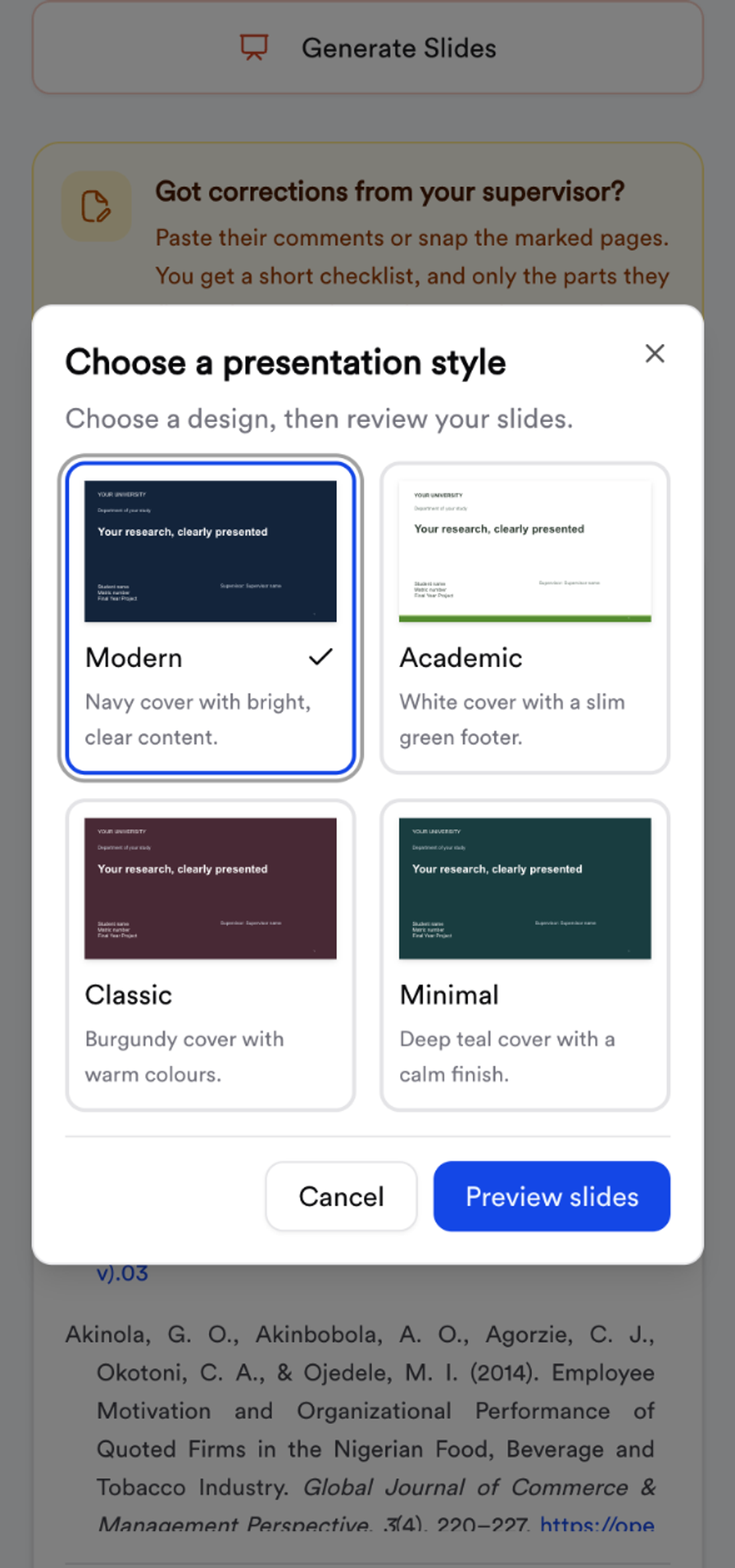
You get a full slide deck from your chapters. Go through it slide by slide, edit any text, then tap Download PowerPoint. Add your own pictures and charts in PowerPoint.
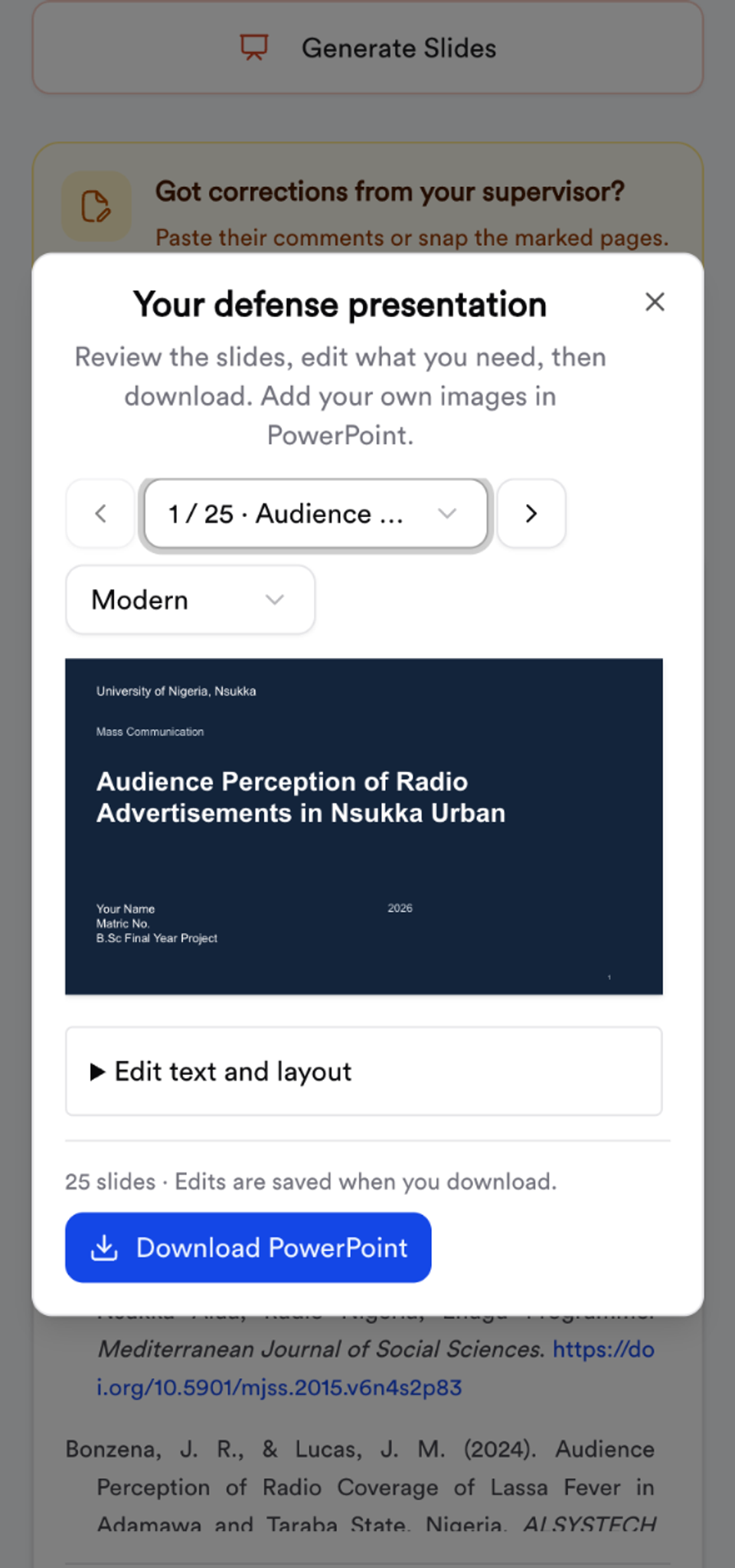
For what a good defence deck contains, see final year project defence PowerPoint slides.
Step 11: Practise for your defence
Your defence is the most stressful day of the project. Once Chapters 1, 3 and 4 are written, the Defence tab gets you ready from your own work, not a generic list.
Tap Prepare my defence. In under a minute you get four tabs.
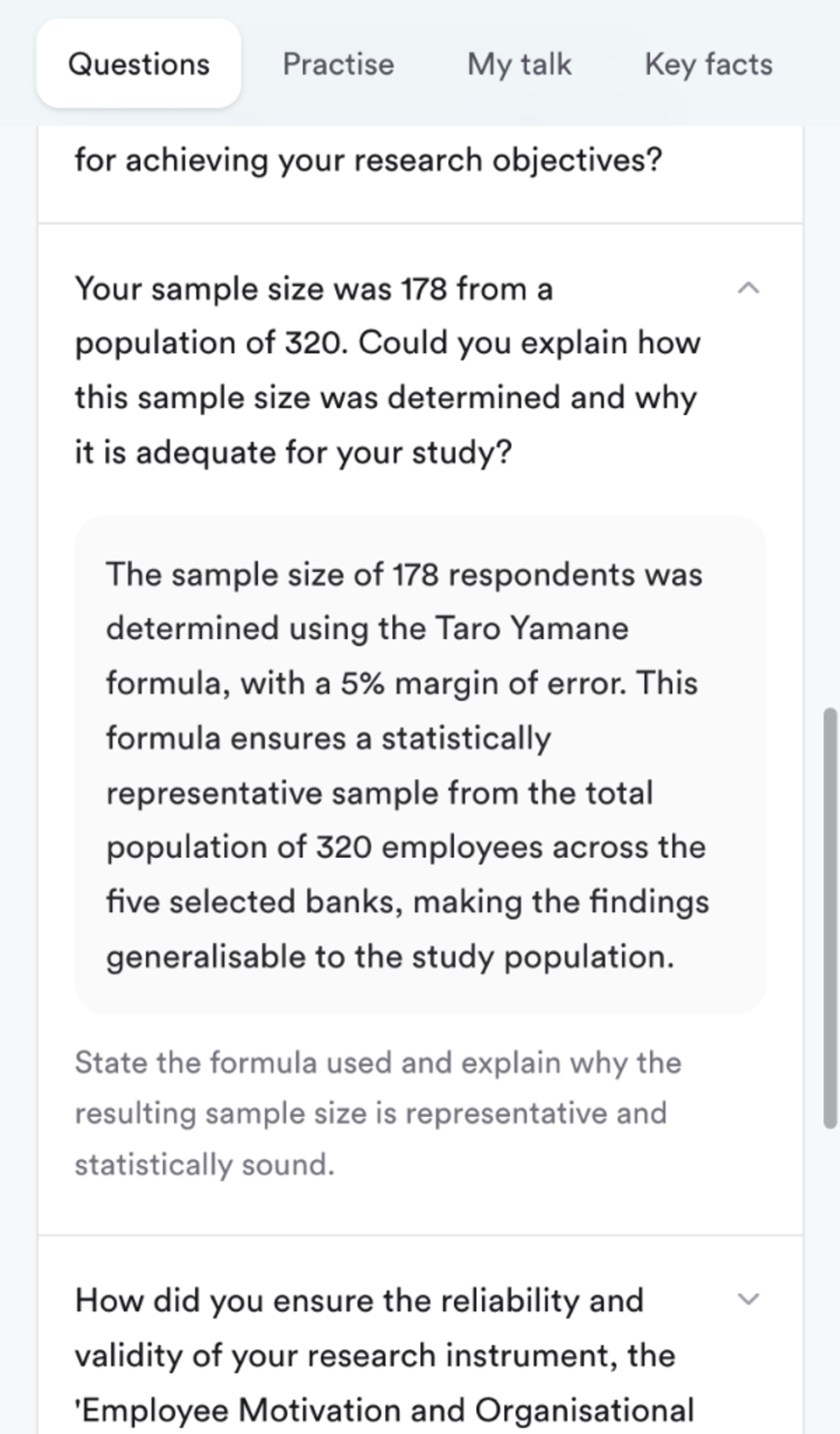
Questions. 16 to 19 questions, in the order a panel usually asks them: your topic, your problem and objectives, your methodology, your findings and your recommendations. Think of your answer first, then open a question to compare.
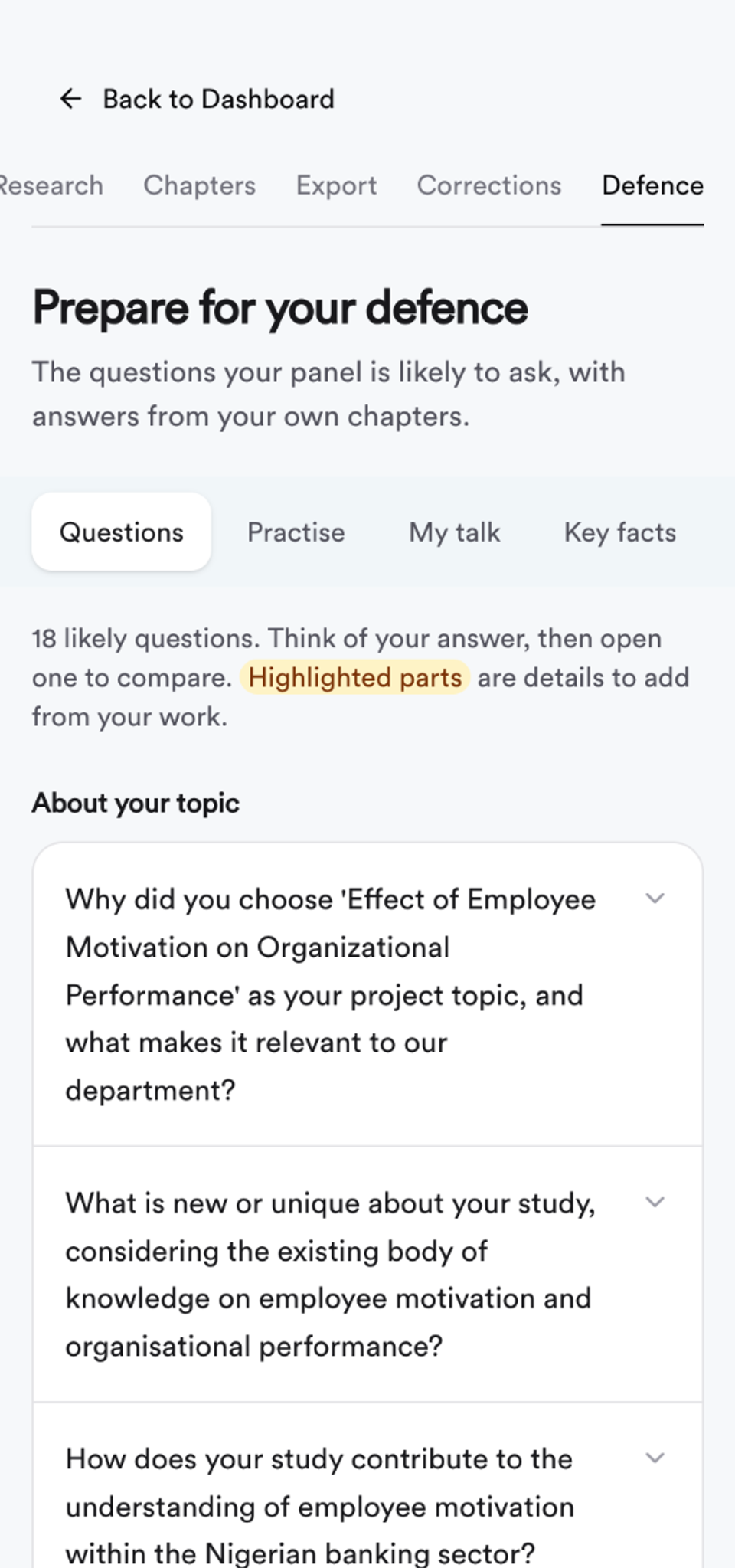
Each answer is written from your own chapters, with a tip on what the panel wants to hear. In our example, the sample size answer uses the project's real figures: 178 from a population of 320, using the Taro Yamane formula.
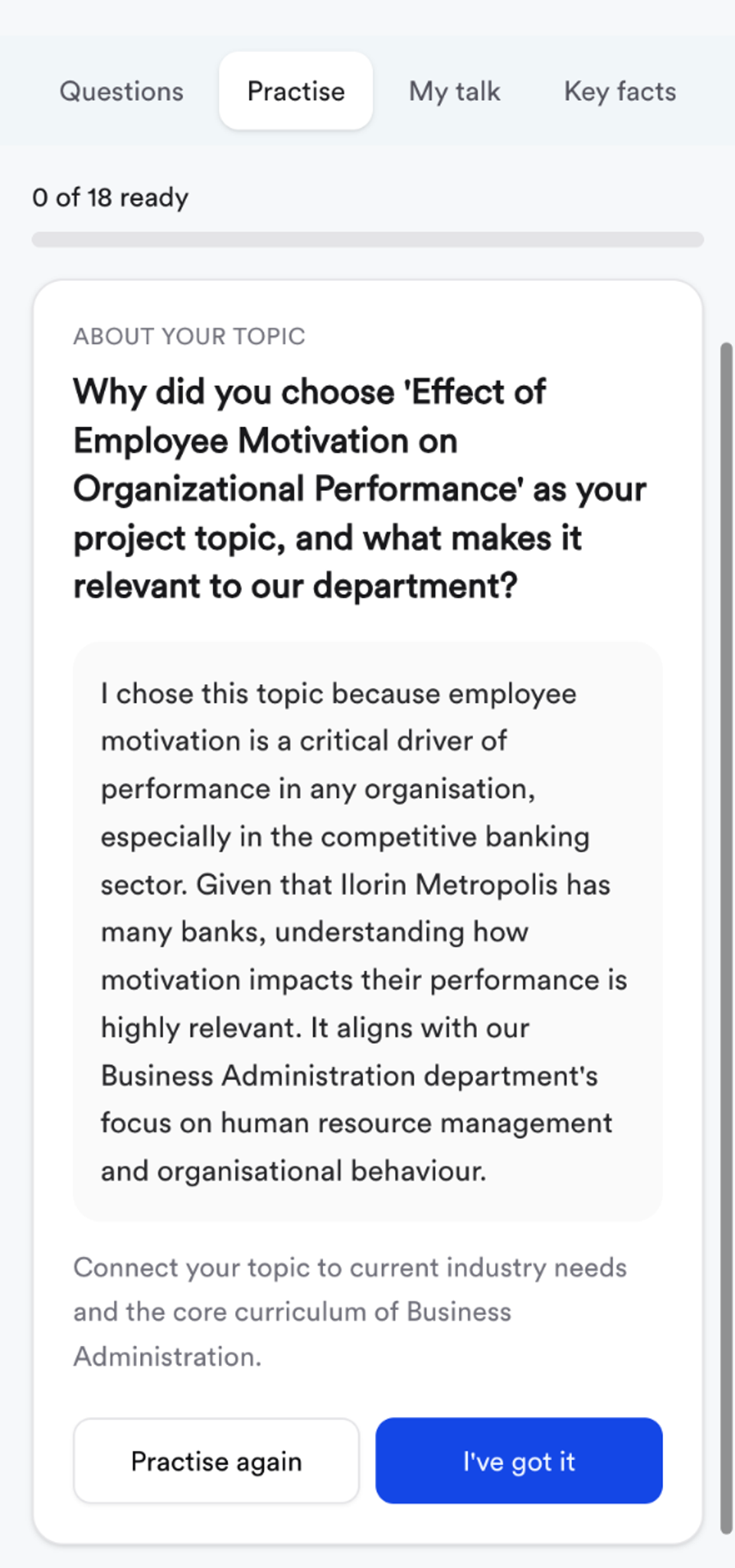
Practise. One question at a time, like flash cards. Say your answer out loud, tap Show answer, then I've got it or Practise again. Your progress is kept on your phone.
My talk. A four to five minute opening presentation you can copy and rehearse with your slides.
Key facts. Your objectives, design, study area, population, sample, instrument, analysis and findings, taken straight from your chapters. Examiners often check these first, so know them by heart.
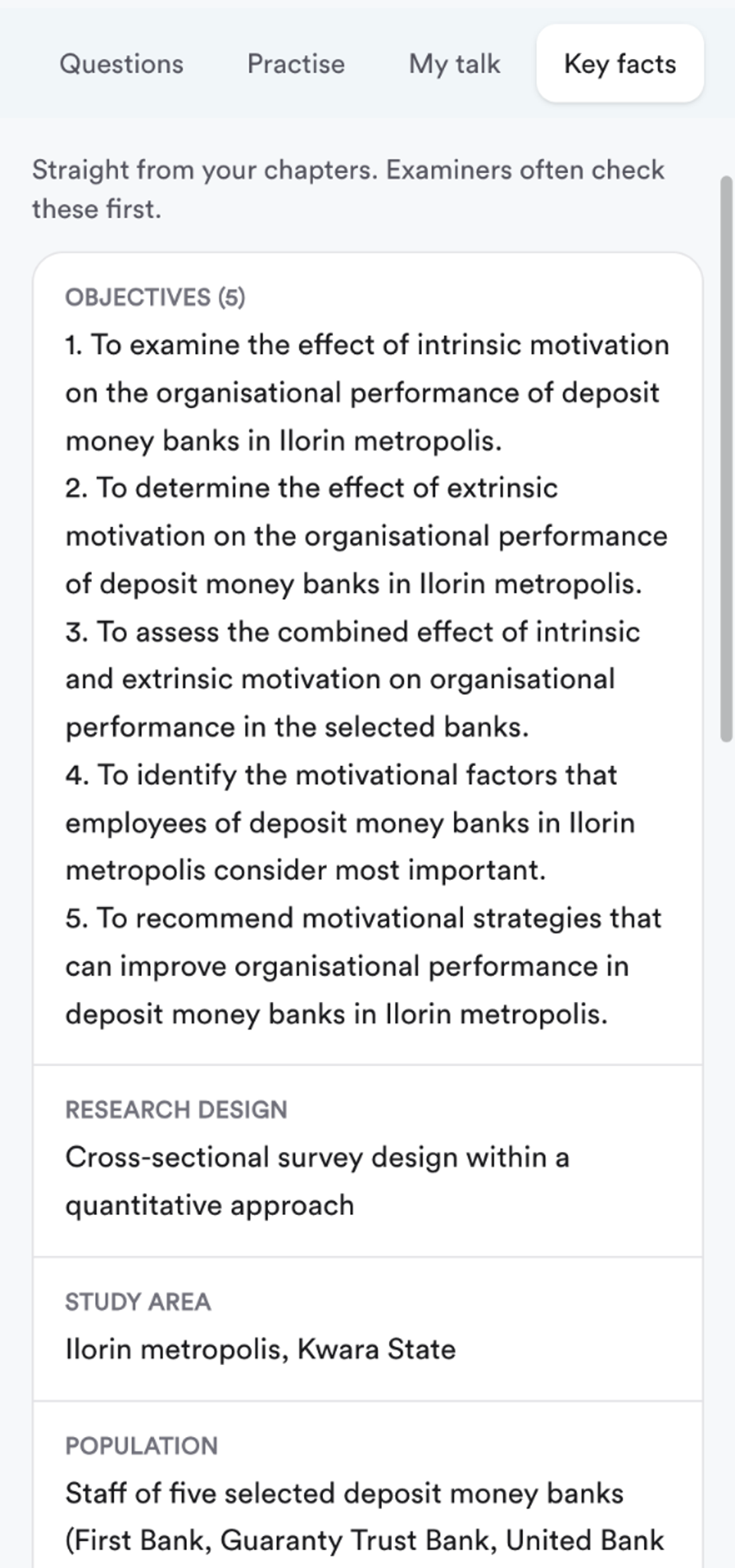
If your results aren't in yet, the answers leave out findings and say what you will report, so you never practise numbers you don't have.
For more practice, see our list of final year project defence questions and answers.
What changes for your department
The steps above are the same for everyone. What changes is the method you pick in Step 2, the questions in Chapter 3 and the tables in Chapter 4.
Education
Most Education projects are questionnaire surveys of teachers or students, often on a 4-point scale (SA, A, D, SD). Pick Questionnaire survey. In Chapter 4, type the counts for each statement and the mean, standard deviation and decision are worked out with the usual 2.50 cut-off for a 4-point scale.
Doing a teaching method study, like "Effect of Concept Mapping on Students' Achievement in Chemistry"? Pick Class or field experiment (pre-test and post-test). Chapter 3 then asks about your groups and your test, and Chapter 4 is laid out for the groups' test scores instead of Likert tables.
See also: how to interpret Likert scale mean scores.
Business Administration, Accounting and Banking and Finance
A survey of staff or customers works like our example. If your topic uses figures from annual reports, the CBN or the NBS (for example "Effect of Exchange Rate on Economic Growth in Nigeria, 1990 to 2023"), pick Existing data: annual reports, CBN or NBS figures. The data guide then tells you what figures to collect and for which years, instead of who to survey.
For hypotheses tested with chi-square, correlation or regression, paste your SPSS result for each one. MonoEd FYP reads the p value and writes the decision (reject or do not reject the null hypothesis at 0.05).
See also: chi-square test in SPSS explained.
Nursing and Public Health
Health projects are usually knowledge, attitude and practice surveys of patients, health workers or a community. Pick Questionnaire survey, or Hospital, clinic or farm records if you are using records, or Interviews or focus groups for a qualitative study. The data guide's "Keep in mind" list covers permission and consent before you collect anything.
Computer Science and other build projects
Pick Build software or a system. Chapter 3 asks about your system's users, modules, database and tools instead of a population and sample, and Chapter 4 covers implementation, screenshots and testing.
If your system was built with MonoEd Project Source Code, link it to your project. Chapters 3 and 4 then use your real tables, features, screenshots and test results, and stay in step when the system changes.
What's free and what you pay for
Free: start a project, check the research papers, and write and read Chapters 1 and 2 online.
Unlock (once per project, not per chapter): Chapters 3 to 5, the data guide and Chapter 4 results tables, Supervisor Fix Mode, the Word download, defence slides and defence practice questions. Your project is kept for 180 days, long enough for corrections and your defence.
The unlock was ₦6,500 per project in November 2026, and a group of three pays ₦5,500 each. Check the current price on the site before you pay.
Tips from students who finished fast
- Get your topic approved first. Changing the topic later means starting again.
- Paste your supervisor's outline at the start if you have one. It is easier than renaming headings later.
- Collect your data before Chapter 4. The data guide tells you exactly what to bring.
- Keep your counts. Your questionnaire tally is the evidence behind every table.
- Read everything before you submit. Fill the marked places, check the facts and make the wording yours.
- Use Fix Mode for corrections instead of rewriting whole chapters, so the parts your supervisor already approved don't change.
Frequently Asked Questions
Is the MonoEd FYP generator free?
Chapters 1 and 2 are free to write and read online. Chapters 3 to 5, corrections, the Word download, slides and defence prep come with a one-time unlock per project.
Can I use it on my phone?
Yes. Every step in this guide, including filling in your Chapter 4 tables and downloading the Word file, works on a phone.
Does MonoEd FYP make up my Chapter 4 results?
No. Chapter 4 is written with marked places for your real figures. You paste your results or type your counts, and MonoEd FYP works out the percentages, means, standard deviations and decisions from them.
Can I change the font, line spacing and margins?
Yes. On the Export page, tap Change next to Page format and pick Standard, Double spacing, Binding margin or set your own font, size, spacing, left margin and alignment. The Word file follows your choice.
Does it follow my supervisor's outline?
Yes. Paste the outline when you create the project, or later with Update my outline on the Chapters page. Your chapters and Word file use your supervisor's headings.
What if my supervisor asks for corrections?
Open Supervisor Fix Mode, paste the comments or add photos of the marked pages, and work through the checklist. Only the flagged parts are rewritten.
Does it help with my defence?
Yes. You get defence slides as a PowerPoint, plus likely questions with answers from your own chapters, a practice mode, an opening talk and the key facts to know by heart.
About the Author
Mohammad-Jamiu B. Balogun, GMNSE
Founder & Product Architect, MonoEd Africa
Mohammad-Jamiu is a First-Class Telecommunications Engineer and Best Graduating Student of Bayero University, Kano (Class of 2024), and the founder of MonoEd Africa. An AI engineer and product architect, he designs and builds MonoEd's guided workflows for SIWES logbooks and reports, final year projects and academic tools such as the GPA calculator, helping students produce better work and build the skills the AI era demands. MonoEd's tools have reached more than 20,000 students across Nigeria.