How to Use the MonoEd SIWES Report Generator: Step-by-Step Guide (2027)
Step-by-step guide to the MonoEd SIWES Report on your phone: the form, logbook import, free preview, organogram, Word and PDF download and defence slides.

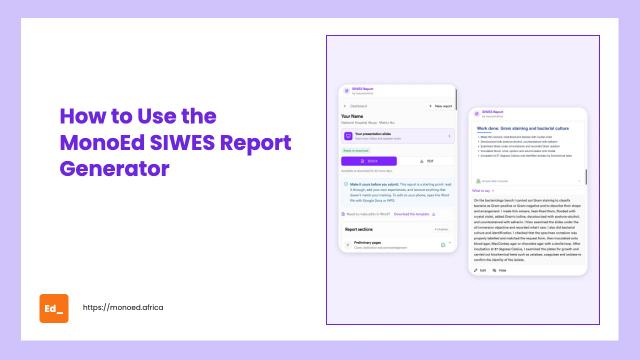
Quick answer: Go to report.monoed.africa and tap Create report. Fill in your details, your company and what you did during SIWES (you can type it or speak it), and pick 4 or 5 chapters to match your school. Read your preliminary pages and Chapters 1 and 2 free. When you are happy, unlock the report, then download it as a Word file or PDF. You can also generate your company organogram, choose which preliminary pages to keep, and add PowerPoint slides for your defence.
This guide walks through the MonoEd SIWES Report one screen at a time, from the first page to your defence slides. Every screenshot was taken on a phone, because that is how most students use it.
We follow one example report all the way through: a Microbiology student who did a three-month SIWES in the Clinical Microbiology Laboratory of a teaching hospital. The name and matric number on screen are replaced with "Your Name" and "Matric No.".
If you are in Engineering, Computer Science, Business or any other course, the steps are the same. Only what you write about your work changes.
What you need before you start
- Your full name and matric or registration number, as they should appear on the cover
- Your school, department and course
- Your SIWES start and end dates
- Your company's name and address, and the unit you worked in
- Your industry supervisor's name, and anyone you want to thank
- Your notes on what you did each week (rough notes are fine)
- Your logbook, if you kept it in the MonoEd SIWES Logbook app
You don't need a laptop. Everything below works on your phone.
The steps at a glance
- Open the report generator
- Fill in your details and choose 4 or 5 chapters
- Add your company
- Describe your work experience
- Or bring in your online logbook
- Read your free preview
- Generate your company organogram
- Choose your pages and reference style
- Unlock and download your Word file
- Check the pages before you print
- Get your defence slides
- Find your reports later
Step 1: Open the report generator
Go to report.monoed.africa and tap Create report.
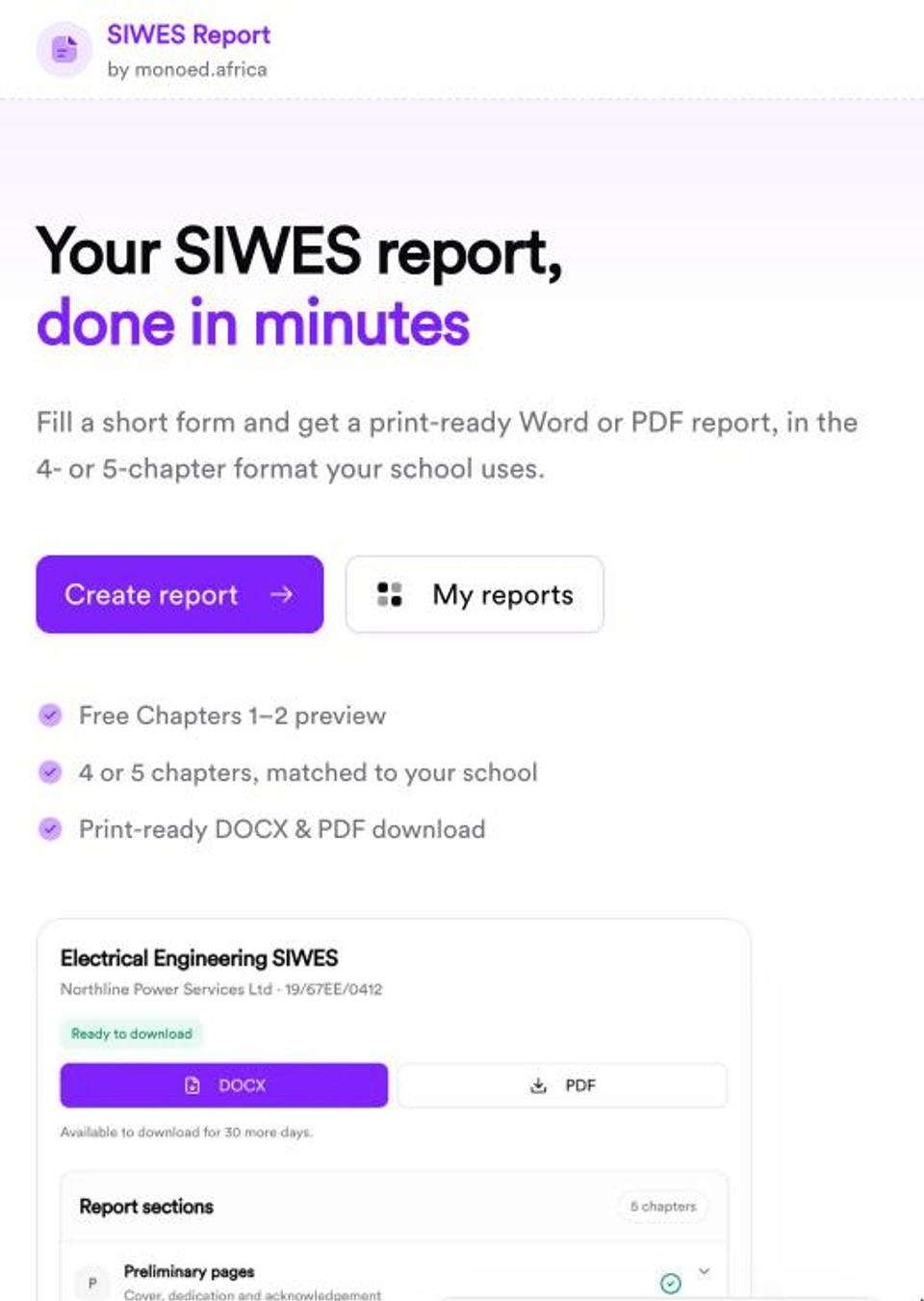
You can start filling the form before you sign in. Your answers save on your phone as you go, so a weak network or a closed tab won't wipe them. You sign in with your Gmail account when you are ready to generate, so your report is saved to your account.
Step 2: Fill in your details and choose 4 or 5 chapters
The first section, About you, asks for your name, matric number, gender, school and course of study. Start typing your school's name and pick it from the list. If we have your school's logo, it goes on your cover page automatically. You can also upload your own logo.
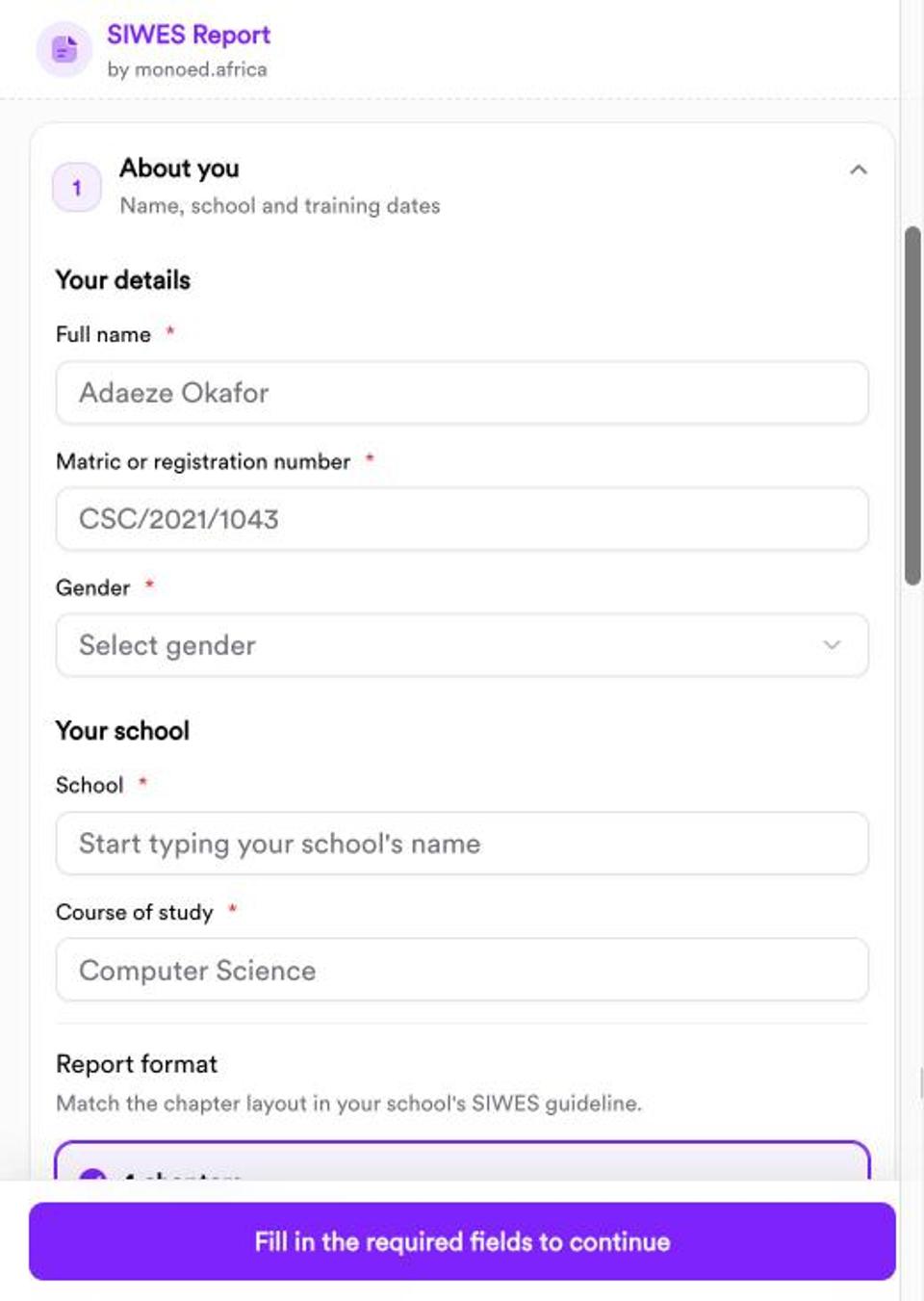
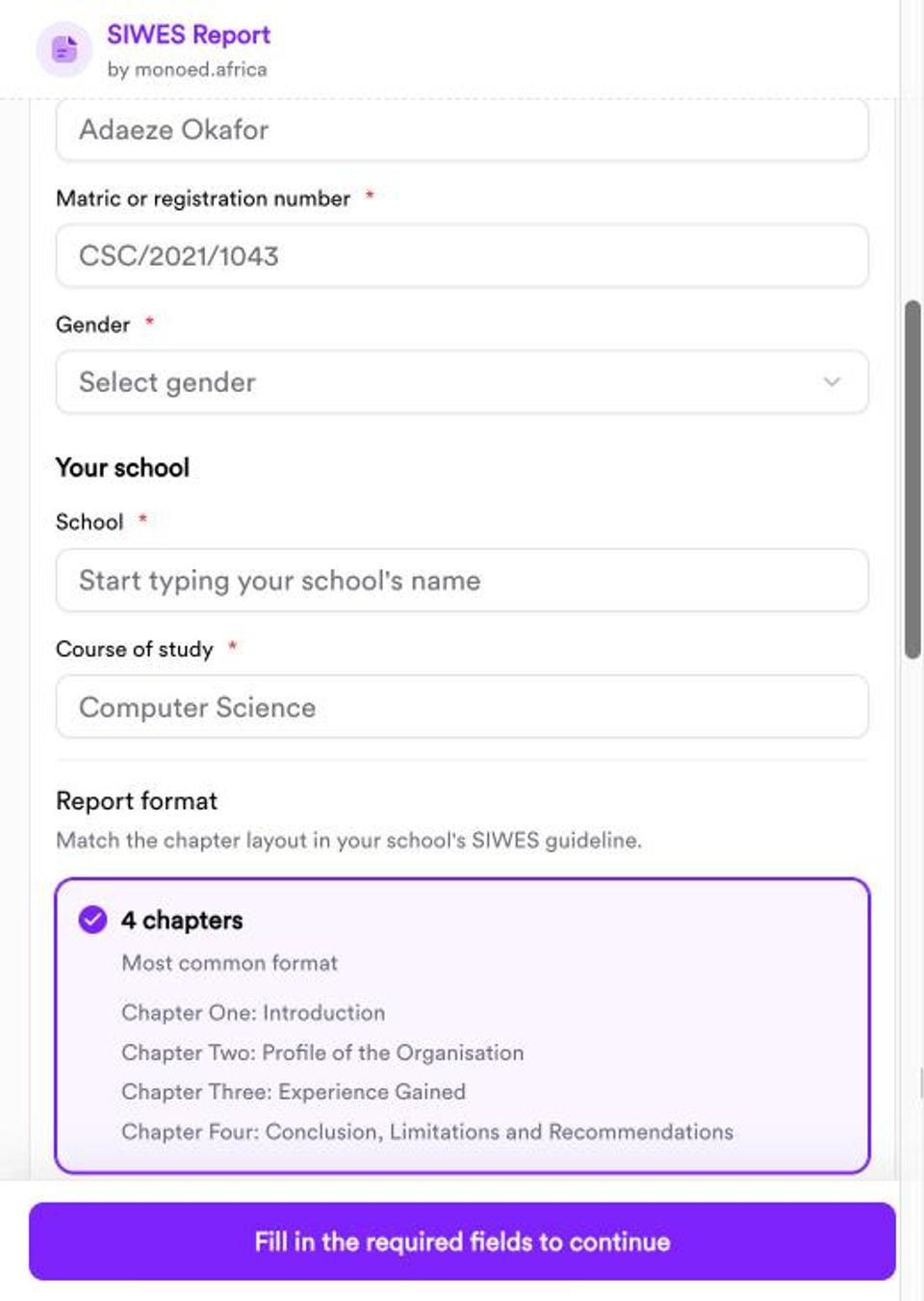
Next, choose your Report format. Check your school's SIWES guideline and pick the layout it uses:
- 4 chapters (the most common): Introduction, Profile of the Organisation, Experience Gained, and Conclusion, Limitations and Recommendations
- 5 chapters: the same, but Work Done and Equipment, Skills and Experience get their own chapters
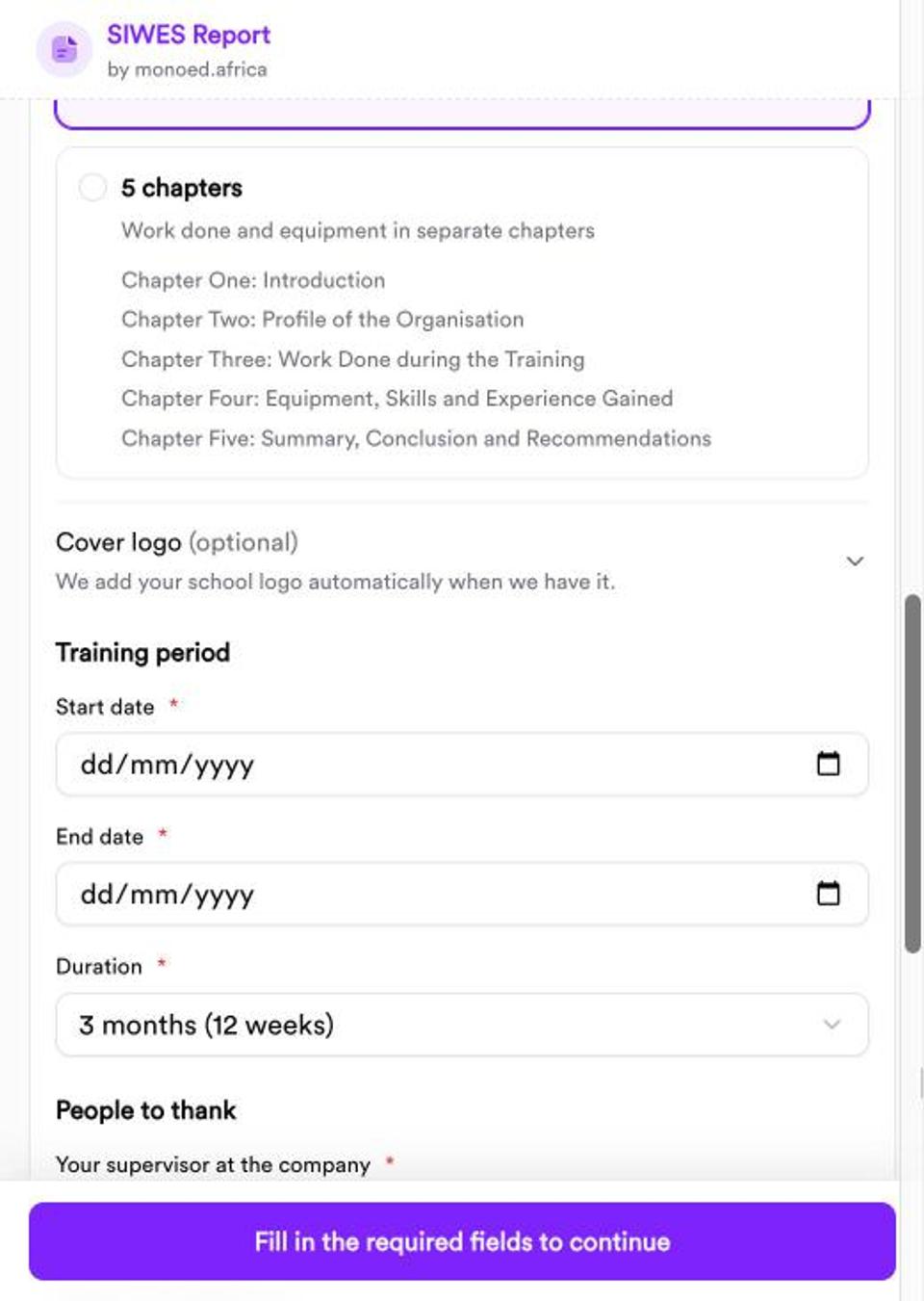
Then add your training period. Enter your start and end dates and choose your duration: 3 months, 4 months, 6 months or 1 year (for polytechnic IT students).
At the bottom of this section, add your industry supervisor's name and the people who helped you. These go into your dedication and acknowledgement. If you want, add your supervising lecturer and Head of Department too. Their names are printed under the signature lines on your certification page. Leave them blank if you'd rather sign by hand.
Step 3: Add your company
Open Company and enter the company name and address. Add a sentence or two about what the company does and the department or unit you worked in. This is what Chapter Two (the company profile) is built from.
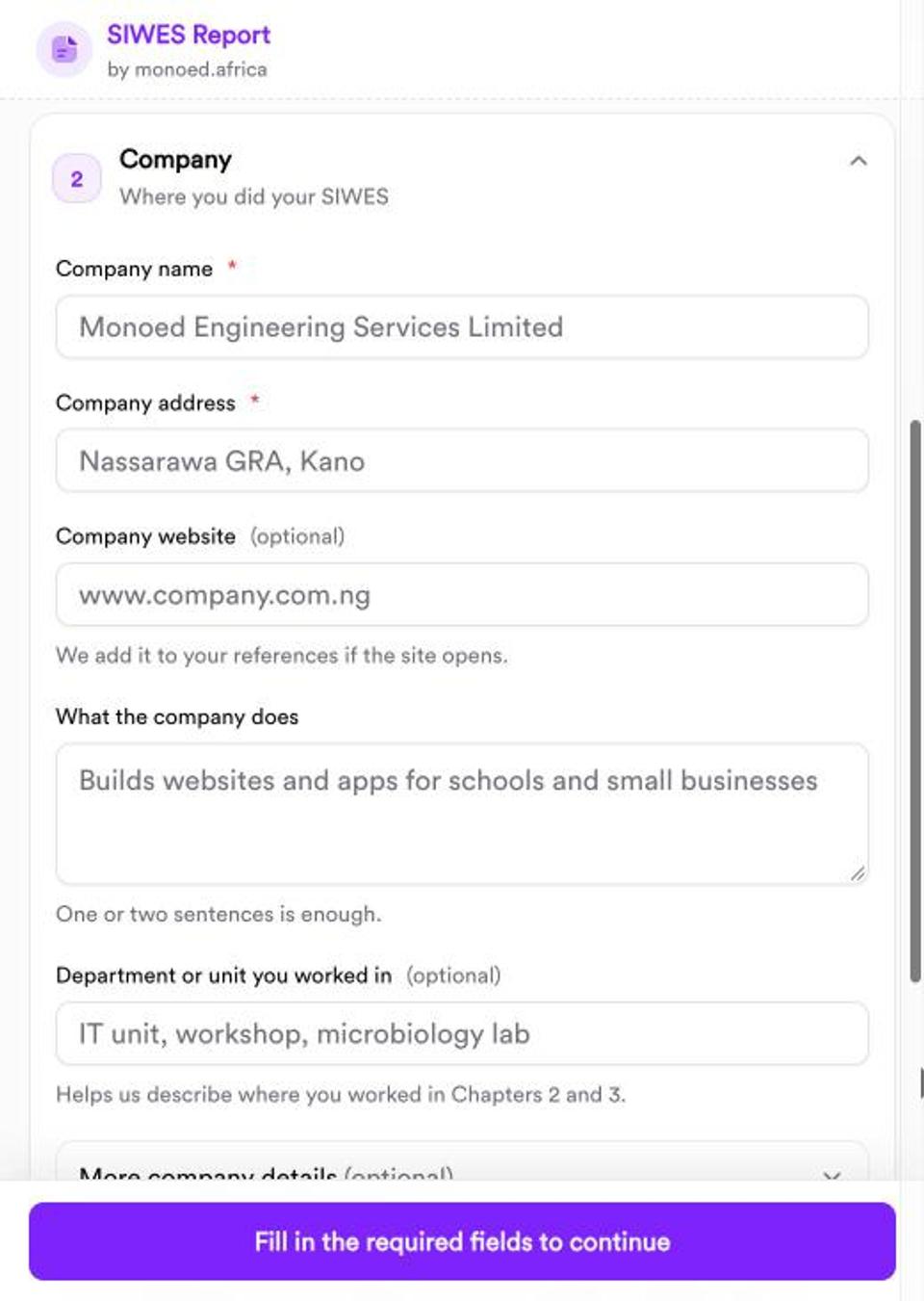
The company website is optional. If you add it and the site opens, it goes into your references.
Step 4: Describe your work experience
This is the most important part of the form, because it becomes Chapter Three, the main part of your report.
Write what you did the way you'd say it to a friend: "learnt Excel, fixed routers, did Gram staining". You don't need formal English here. The report turns it into proper report language.
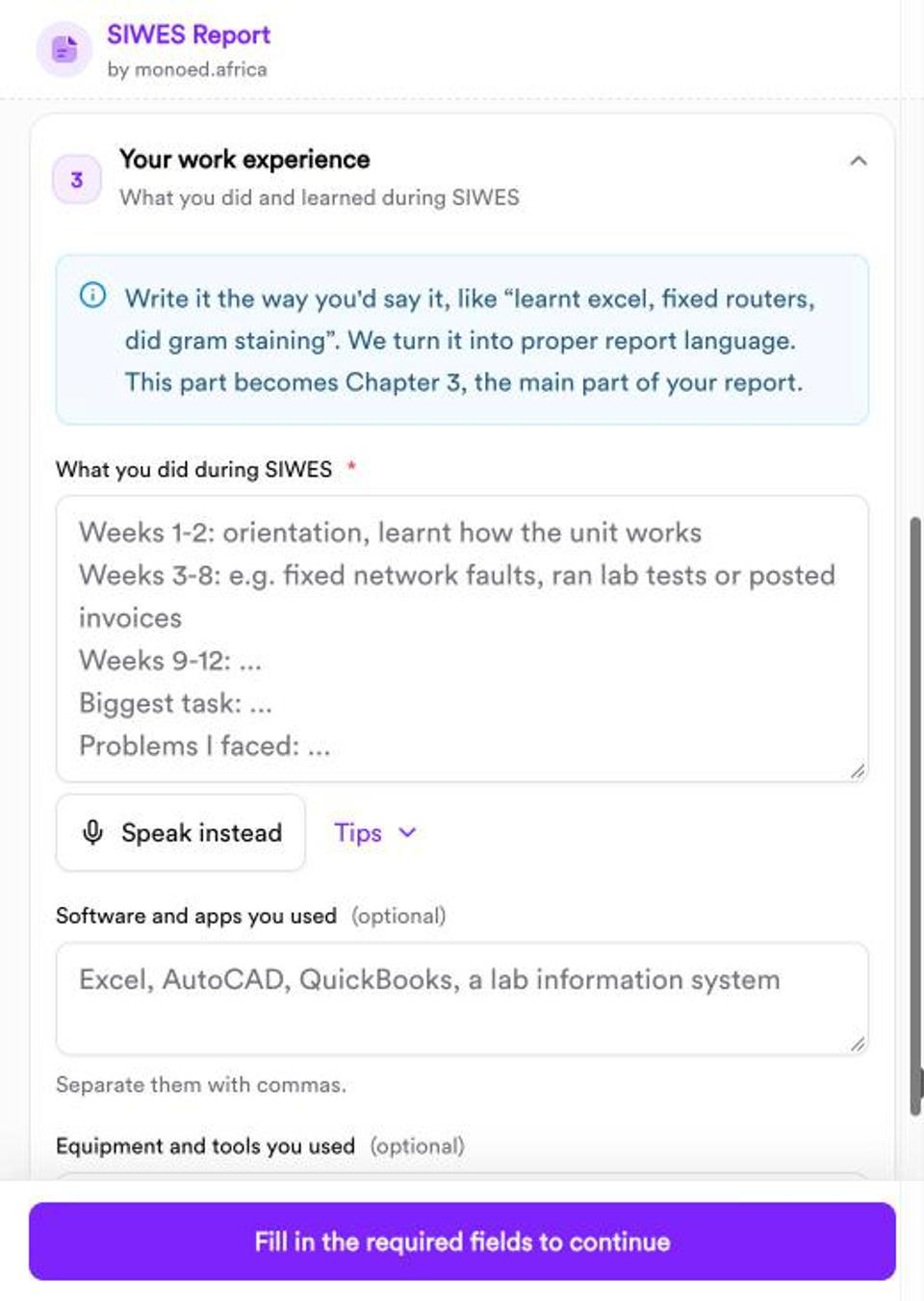
A simple way to fill it is week by week:
- Weeks 1 to 2: orientation, how the unit works
- Weeks 3 to 8: the main tasks you did
- Weeks 9 to 12: anything new you were given
- Your biggest task, and the problems you faced
Don't like typing on your phone? Tap Speak instead and talk. Then list the software and the equipment you used, separated by commas.
Tip: the more specific you are, the better Chapter Three reads. "Ran Gram stains on urine and wound swabs and read them under oil immersion" gives a much better chapter than "worked in the lab". Never add tasks or equipment you did not use. Your supervisor and defence panel can ask about anything in the report.
The last section, Conclusion, is optional. Add any limitations you faced and your recommendations if you have them.
Step 5: Or bring in your online logbook
If you wrote your weekly entries in the MonoEd SIWES Logbook app, you don't have to retype them. At the top of the form, tap Import entries and connect your logbook. Choose the weeks to use, then tap Prefill report fields.
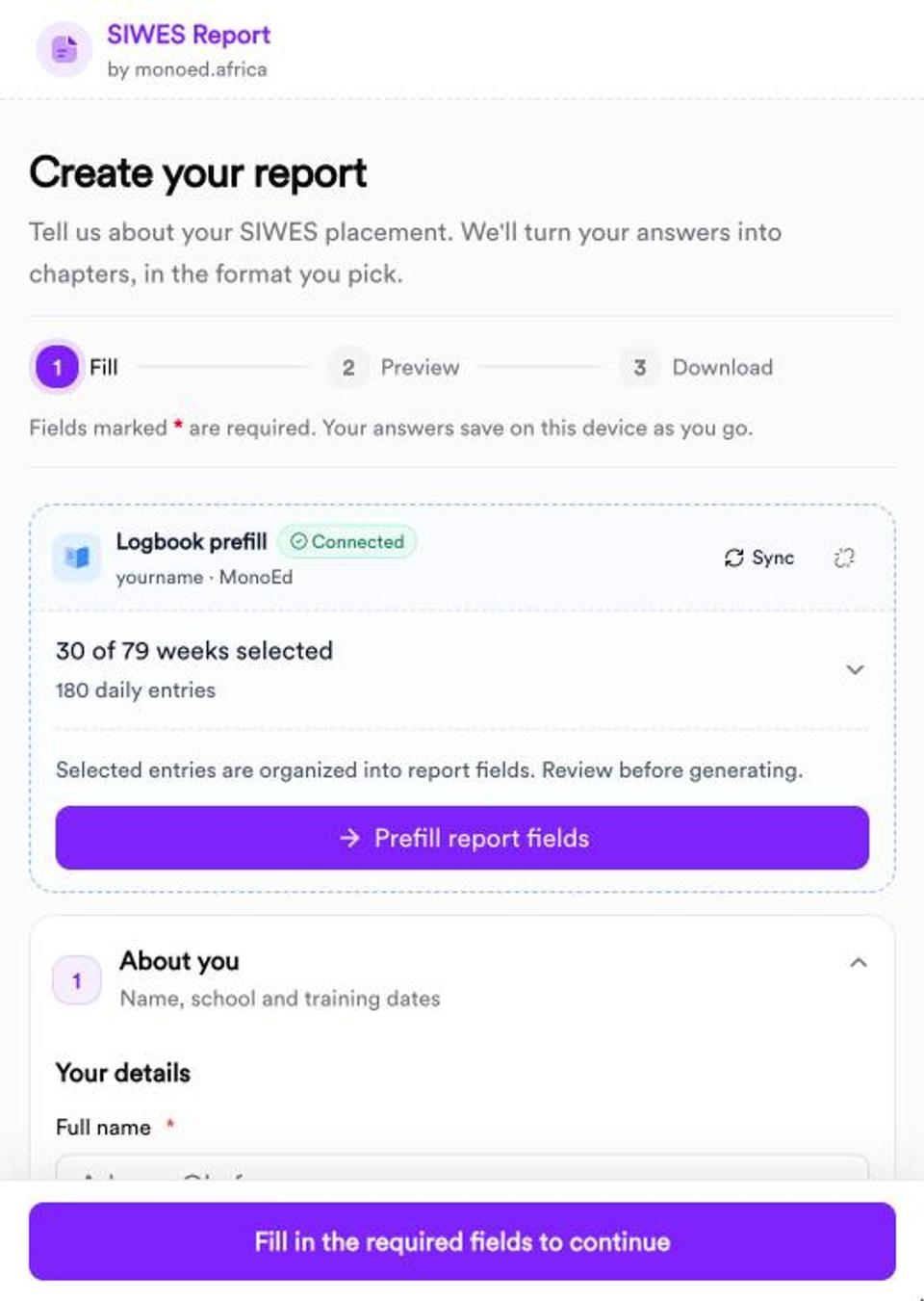
Your dates, company details, department, work experience, software and equipment are filled in from your entries. Your matric number, gender and school stay for you to fill. Read through every field before you generate.
This only works for the online logbook app. A paper logbook can't be imported, so just fill the form as in Steps 2 to 4.
Step 6: Read your free preview
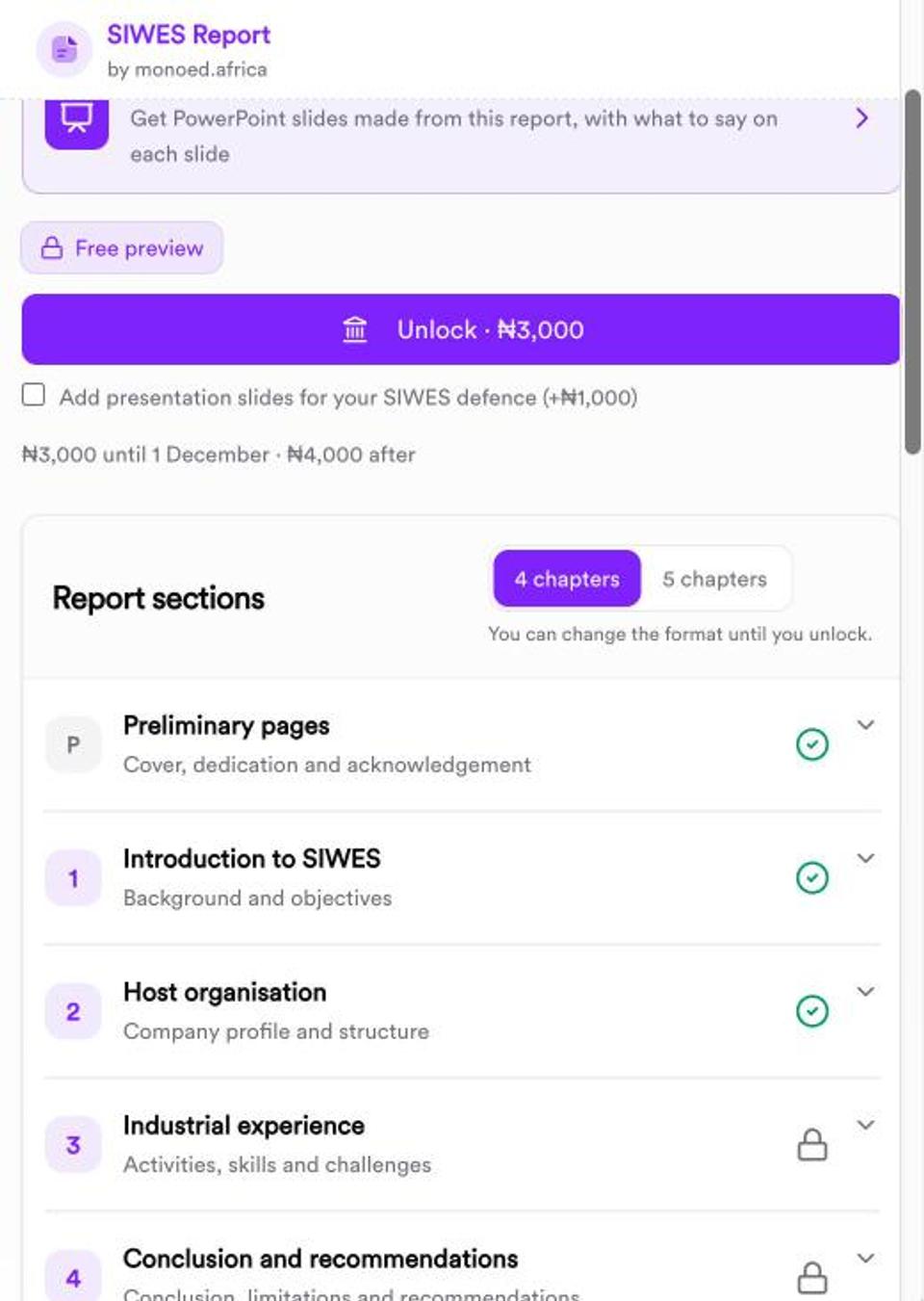
Tap the button at the bottom of the form to generate your report. It takes a few minutes. Your preliminary pages and Chapters 1 and 2 are free to read.
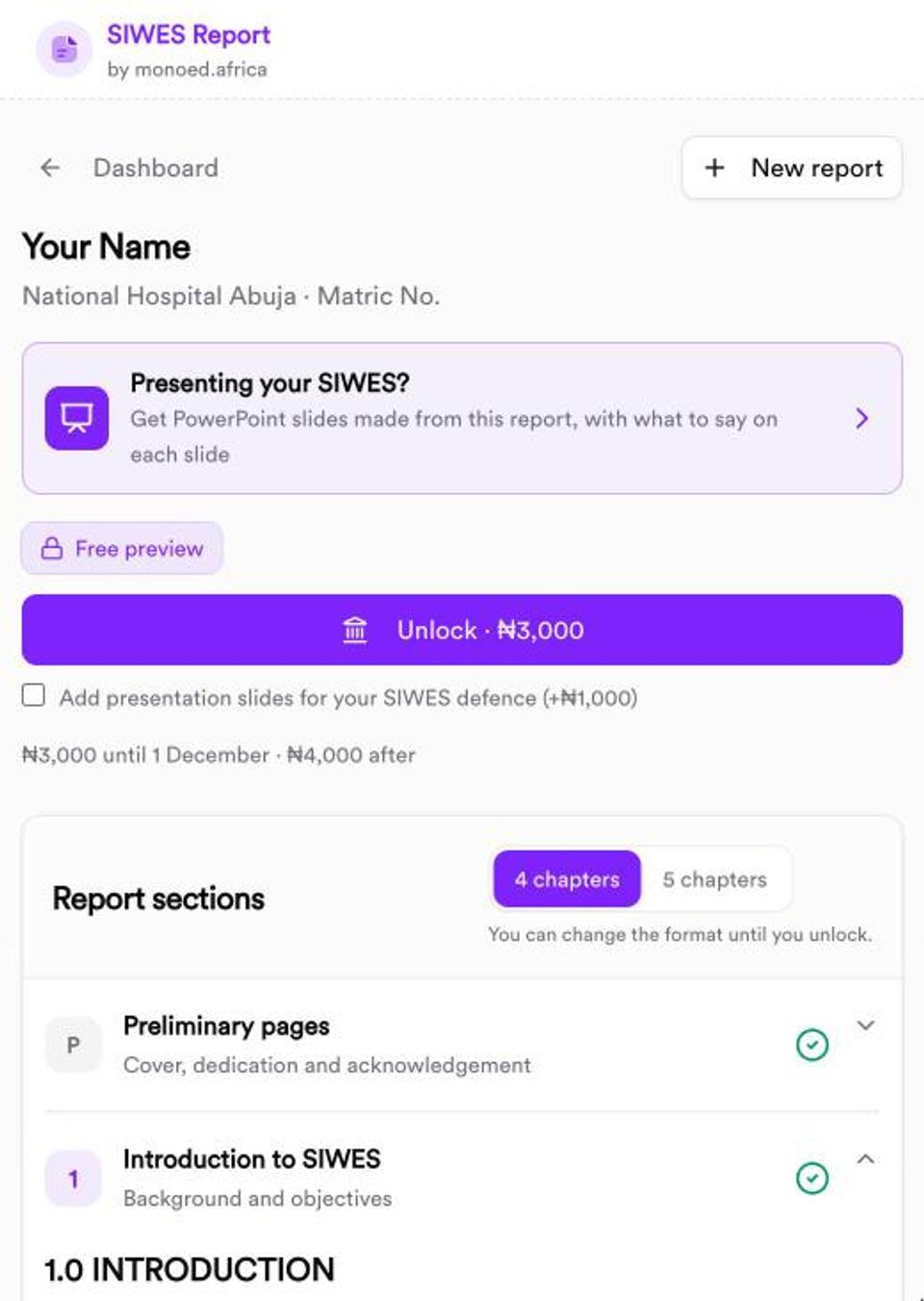
Read Chapter 2 carefully: does it describe your company and your unit correctly? You can still switch between 4 and 5 chapters at this point, until you unlock.
Chapters 3 and 4 show a lock until you unlock the report.
Step 7: Generate your company organogram
Most schools want an organisational chart (organogram) of your company in Chapter Two. Open Host organisation and tap Generate chart.
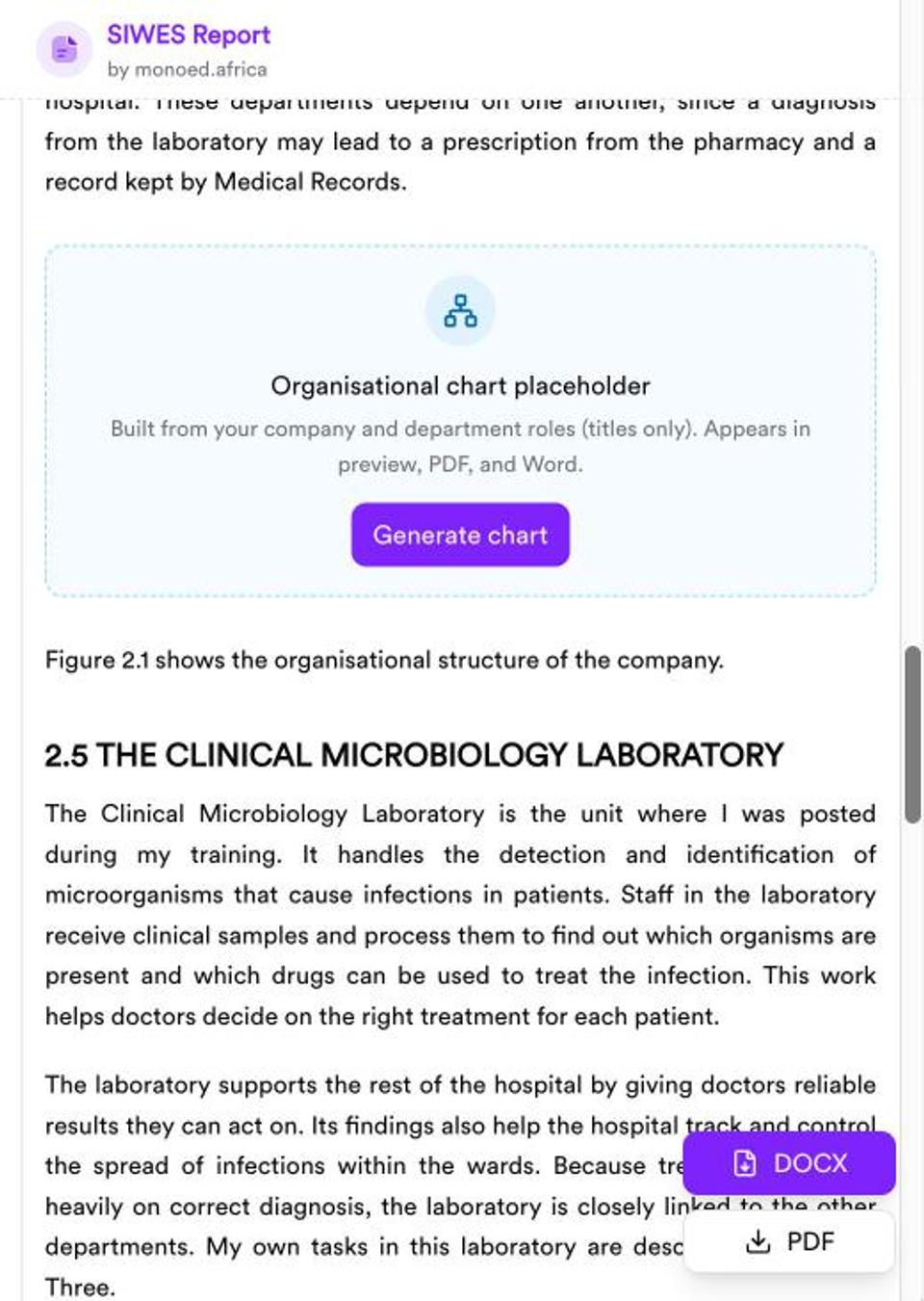
The chart is built from your company and department roles (titles only, no names). It goes into the report as Figure 2.1 and appears in both your Word file and PDF.
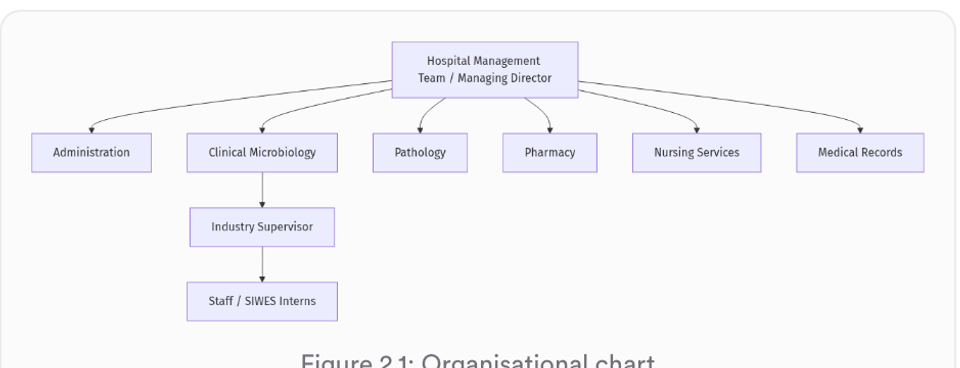
If it doesn't match how your company is set up, tap Regenerate chart. Read how to draw a SIWES organogram to know what a good one shows.
Step 8: Choose your pages and reference style
Schools don't all ask for the same preliminary pages. Under Pages in your report, turn off any page your school doesn't want: certification, dedication, acknowledgement, abstract, table of contents or list of figures. The cover page is always included.
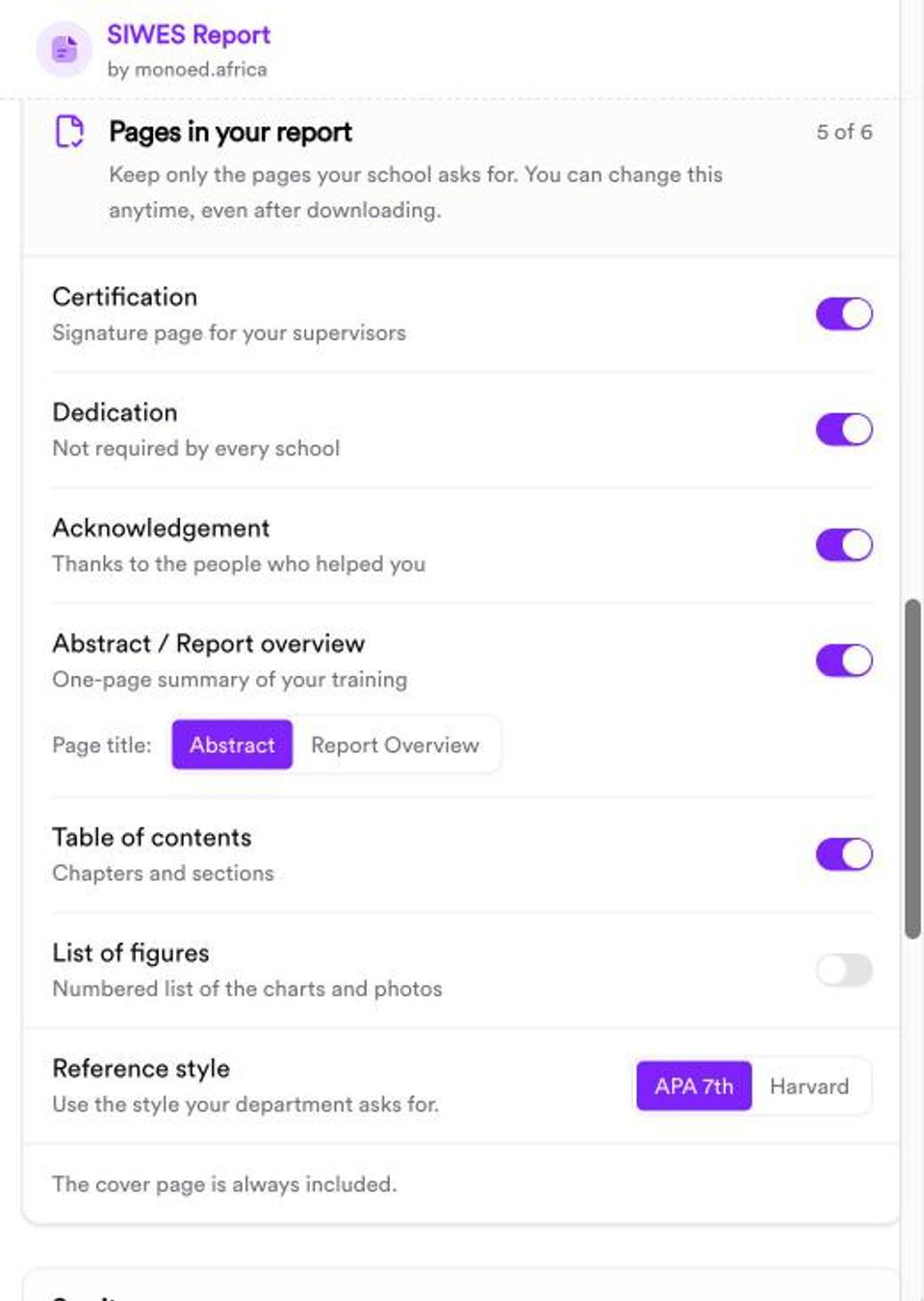
Some schools call the abstract a "Report Overview". Switch the page title if yours does. Then pick your Reference style: APA 7th or Harvard, whichever your department asks for. You can change these at any time, even after you download.
If your report has figure spaces for photos from your training, tap them to add your own pictures.
Step 9: Unlock and download your Word file
When you are happy with the preview, tap Unlock. The price is ₦3,000 until 30 November 2026 and ₦4,000 from 1 December 2026. Pay with Paystack by bank transfer or card. If you have a defence coming, tick Add presentation slides before you pay (₦1,000 extra), or add them later.
After you pay, Chapters 3 and 4, the abstract and the references are written for you, usually in about a minute. Then tap DOCX for the Word file or PDF.
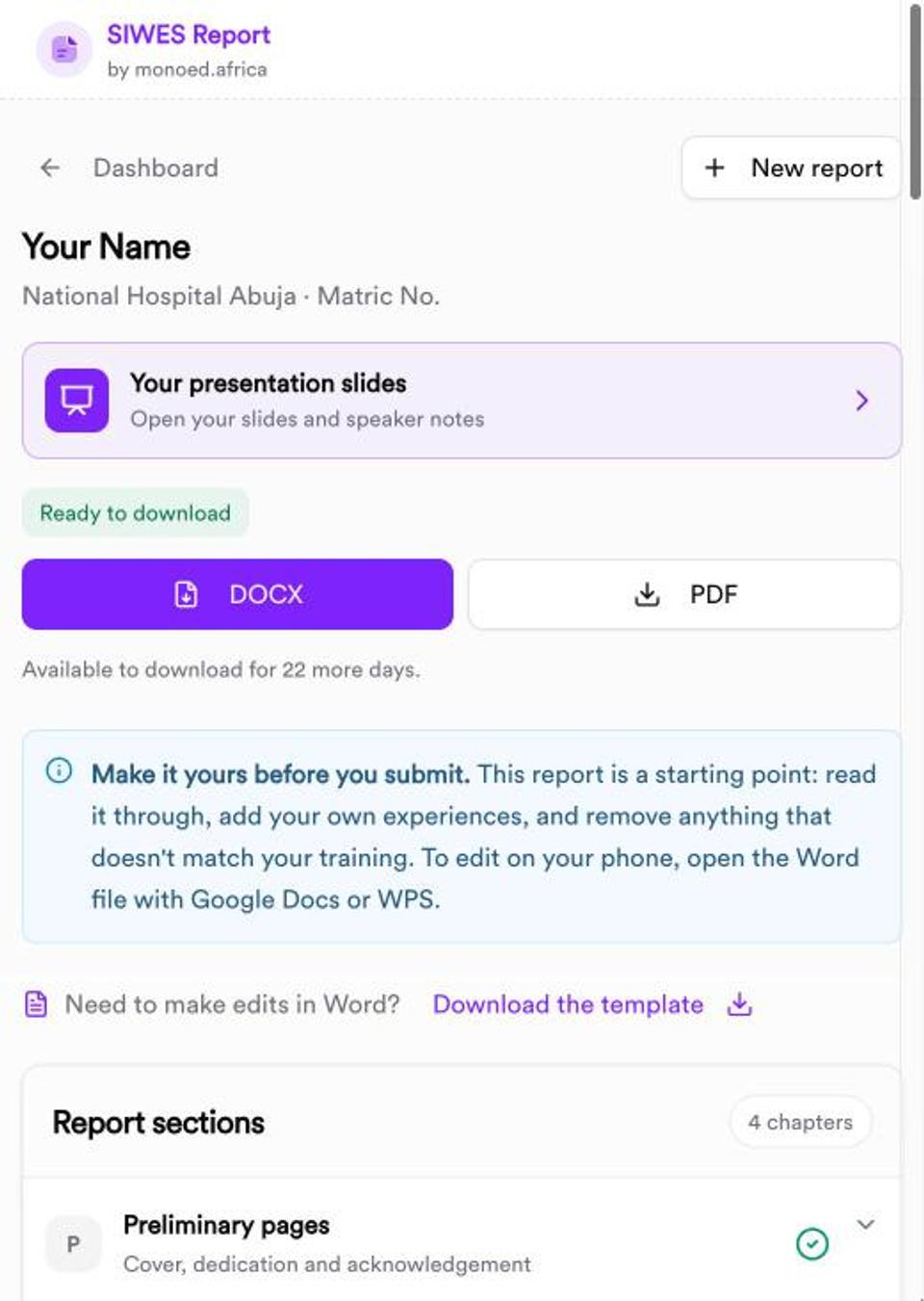
The Word file is already formatted, so you can print it as it is. To edit on your phone, open it in Google Docs or WPS. Read it through, add your own experiences and remove anything that doesn't match your training.
Need to change your details after paying? You get one free edit within 7 days of payment, which rebuilds the report with your new details.
Step 10: Check the pages before you print
Tap See it as pages to see your report on A4 pages, exactly as it prints from Word, with the total page count.
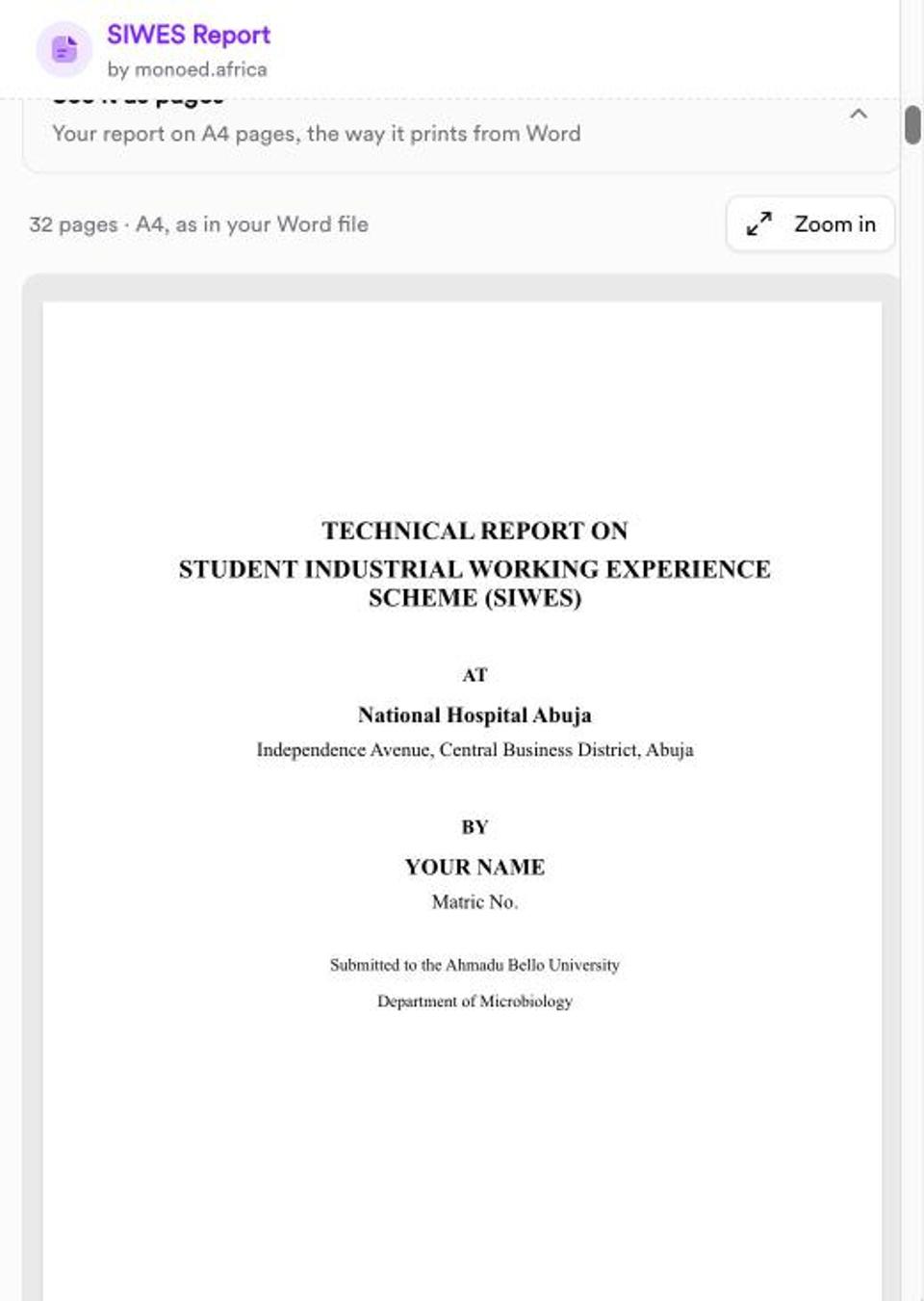
Check your cover page, your name and matric number, and that the chapter headings match your school's guideline. If your school wants a specific cover layout, you can also download the free Word template from the report page.
Step 11: Get your defence slides
If you added slides, tap Your presentation slides. You get a PowerPoint made from your own report: a cover with your school logo, an outline, your company profile, your organogram, the work you did, equipment, skills, challenges, recommendations, conclusion and references.
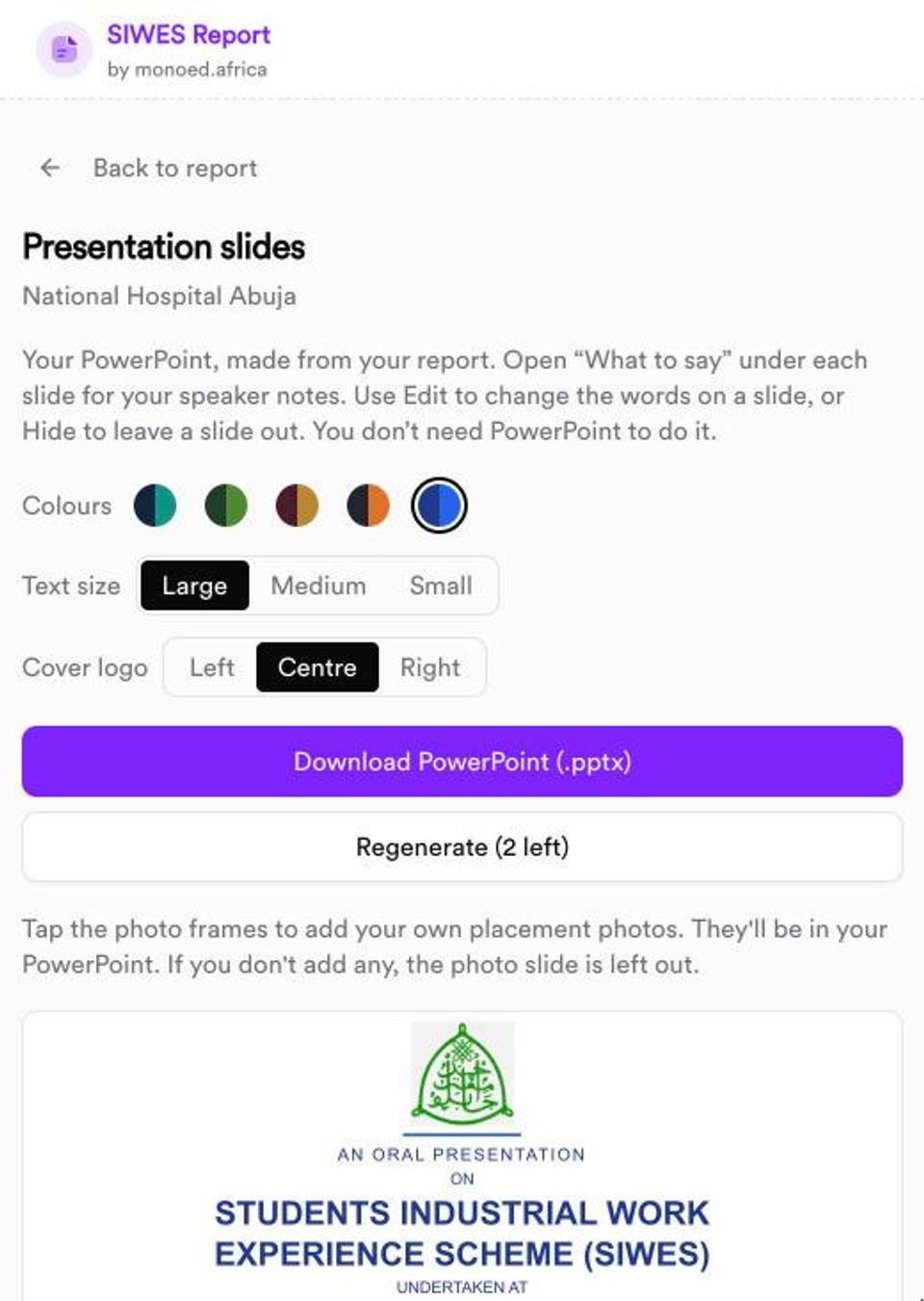
Choose your colours, text size and where the logo sits on the cover. Tap Edit to change the words on a slide or Hide to leave one out. You don't need PowerPoint for any of this. You can also add your own placement photos to the photo slide.
Under every slide, open What to say for your speaker notes.
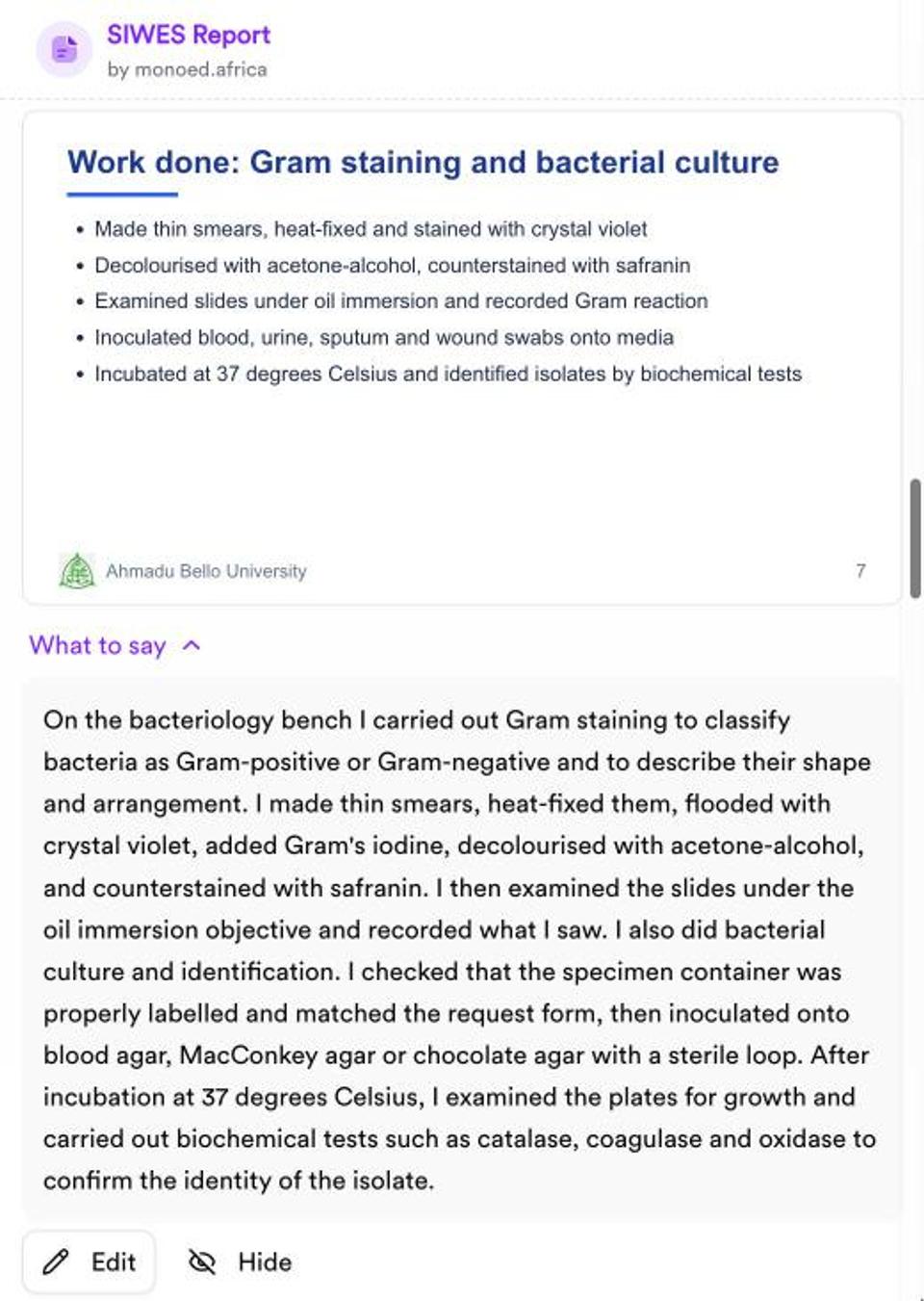
The notes on the last slide include five likely panel questions with suggested answers. You can regenerate the slides twice and tell it what to change. When you are done, tap Download PowerPoint (.pptx). It opens in PowerPoint, WPS or Google Slides. For more help, see how to make SIWES presentation slides and our SIWES defence questions and answers.
Step 12: Find your reports later
Every report you start is saved under My reports, with its status (paid or unpaid) and how many days it is still available.
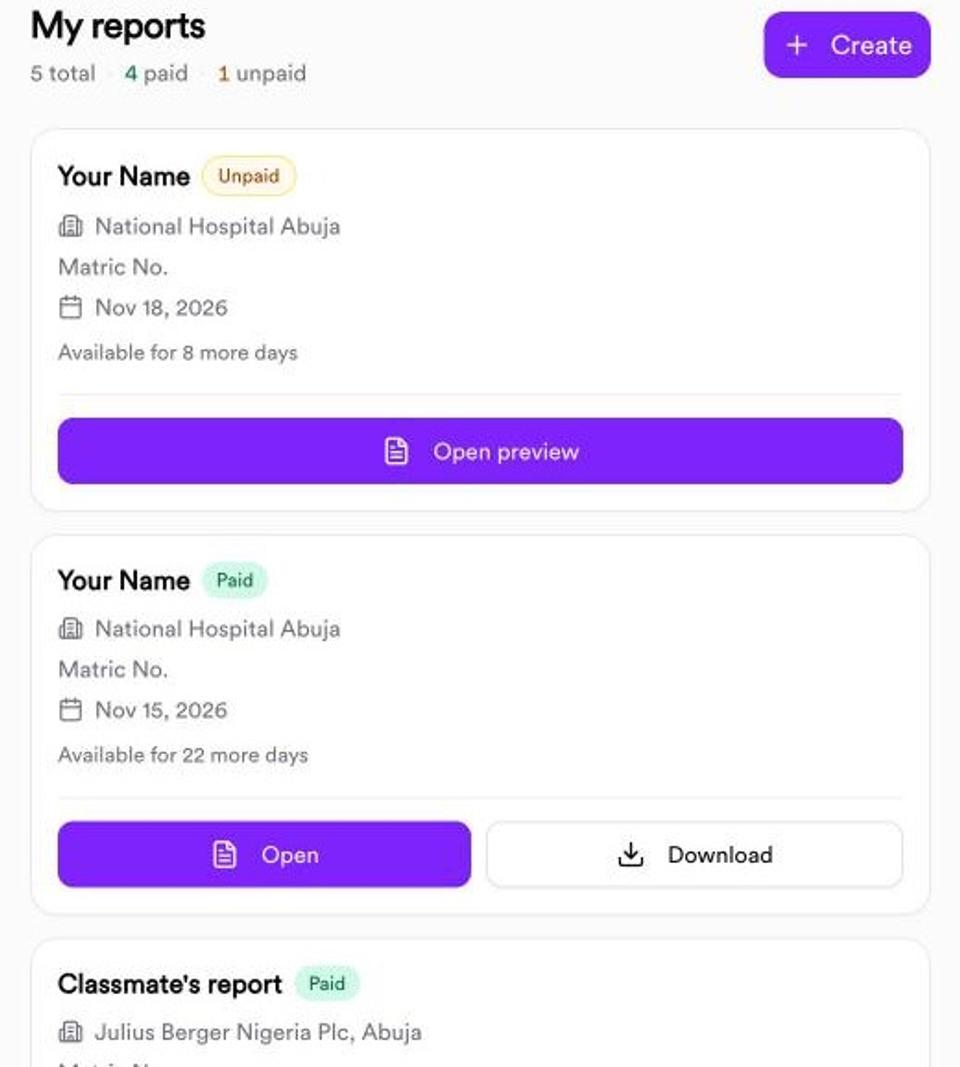
Paid reports stay available for 30 days. Download your Word file and keep a copy on your phone or email it to yourself, so you still have it after that.
Tips for a better report
- Be specific about your work. Name the tasks, tools and problems. Vague notes give a vague Chapter Three.
- Match your school's format. Pick 4 or 5 chapters and the pages your guideline lists.
- Fill the company details you know. What the company does and the unit you worked in make Chapter Two sound real.
- Read every page before you submit. The report is a starting point. Correct anything that is not exactly what you did.
- Download early. Don't wait until the night before submission.
If you want to understand each chapter in detail, read how to write a SIWES report.
FAQs
Is the MonoEd SIWES Report free?
The preliminary pages and Chapters 1 and 2 are free to read. To get Chapters 3 and 4, the references and the Word and PDF files, you unlock the report: ₦3,000 until 30 November 2026, then ₦4,000 from 1 December 2026. Defence slides are an optional ₦1,000 extra.
Can I use it on my phone?
Yes. Every step in this guide was done on a phone, including the download. Open the Word file in Google Docs or WPS to edit it on your phone.
Does it work for polytechnic IT students?
Yes. Pick your polytechnic from the school list, and choose the 1 year duration if your IT runs for a full year.
Can I import my paper logbook?
No. Only entries from the online MonoEd SIWES Logbook can be imported. If you used a paper logbook, type or speak your notes into the form.
Can I edit the report after paying?
Yes. Edit the Word file as much as you like. You also get one free edit of your details within 7 days of paying, which rebuilds the report.
How long is my report saved?
Paid reports stay available for 30 days. Download your Word file and keep your own copy.
About the Author
Mohammad-Jamiu B. Balogun, GMNSE
Founder & Product Architect, MonoEd Africa
Mohammad-Jamiu is a First-Class Telecommunications Engineer and Best Graduating Student of Bayero University, Kano (Class of 2024), and the founder of MonoEd Africa. An AI engineer and product architect, he designs and builds MonoEd's guided workflows for SIWES logbooks and reports, final year projects and academic tools such as the GPA calculator, helping students produce better work and build the skills the AI era demands. MonoEd's tools have reached more than 20,000 students across Nigeria.