Table of Contents for a Project: How to Make One in Word (With Sample)
How to make a table of contents for your final year project in Word, with a sample, Roman numerals for preliminary pages and the mistakes supervisors mark down.

Quick summary:
To make a table of contents for your project in Microsoft Word, first style every chapter title as Heading 1 and every section (1.1, 1.2...) as Heading 2. Then put your cursor on the blank table of contents page, go to References → Table of Contents and pick an automatic table. Word fills in the titles and page numbers for you. Whenever you edit the project, right-click the table and choose Update Field → Update entire table. Preliminary pages use Roman numerals (i, ii, iii), and Chapter One starts at page 1.
The table of contents is one of the last pages students prepare and one of the first pages a supervisor or external examiner sees. A neat one says "this project is organised". A typed one with wrong page numbers says the opposite.
The good news: you should never type a table of contents by hand. Word builds it for you from your headings, and updates it in one click.
What a project table of contents looks like
Here is a typical table of contents for a Nigerian final year project with five chapters:
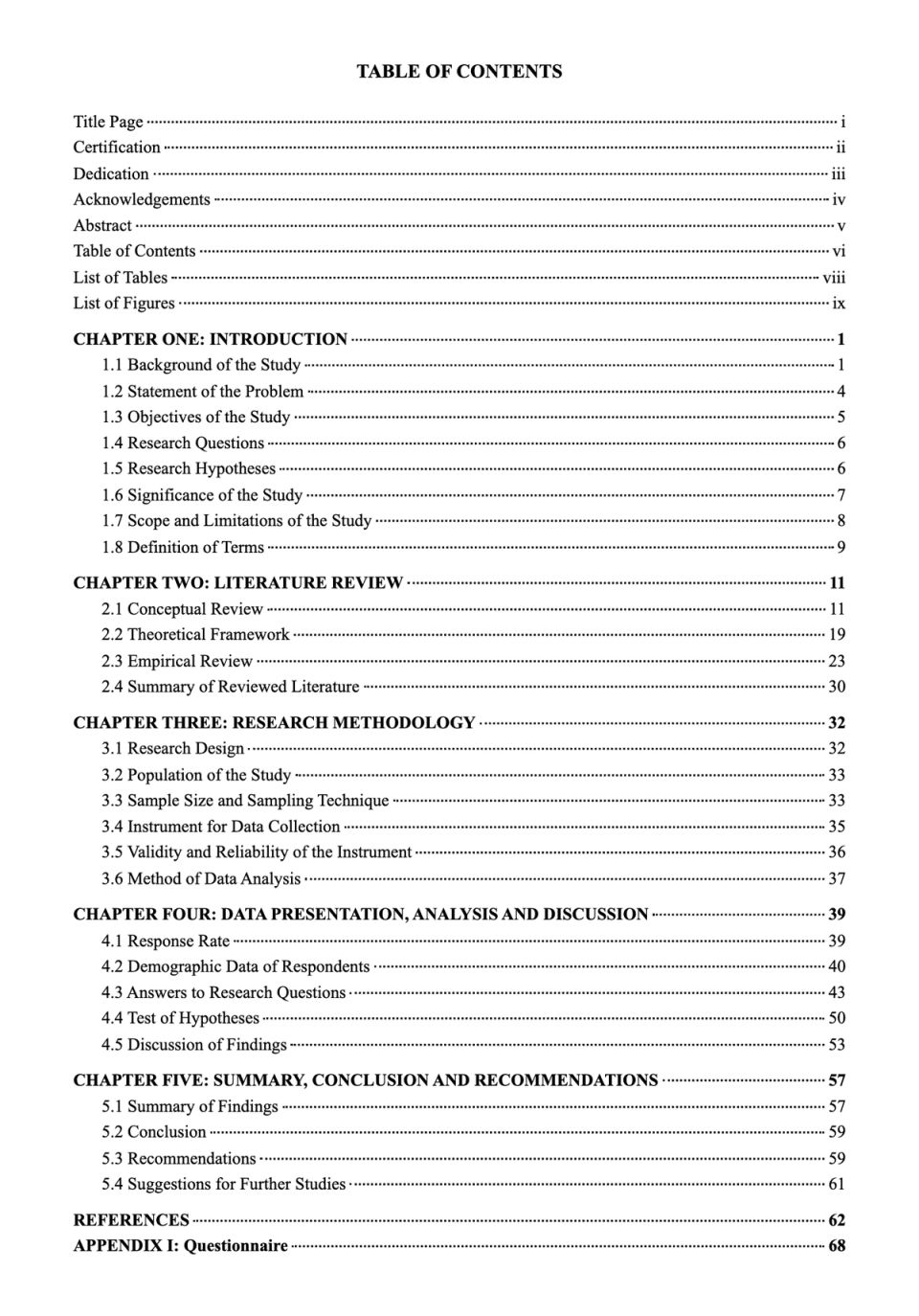
Notice four things:
- Preliminary pages use Roman numerals (i, ii, iii). Chapter One starts again at page 1.
- Chapter titles are bold, and sections are indented under them.
- Dotted lines (leaders) lead the eye to the page number.
- Page numbers line up on the right.
Your department may number sections differently or use "Chapter One" on its own line. Follow your department's format or your supervisor's outline.
What goes in a project table of contents
Most Nigerian universities and polytechnics list:
- Title page
- Certification (or approval page)
- Dedication
- Acknowledgements
- Abstract
- Table of contents
- List of tables and list of figures (if you have tables or figures)
- Chapters One to Five, with their main sections
- References
- Appendices (for example your questionnaire)
Some departments also list the declaration page, list of abbreviations or list of plates. Check a recent approved project from your department.
Step 1: Style your headings
Word builds the table of contents from heading styles, not from bold text. This is the step most students skip.
- Click on a chapter title, for example CHAPTER ONE: INTRODUCTION.
- On the Home tab, in the Styles box, click Heading 1.
- Click on a section title, for example 1.1 Background of the Study, and click Heading 2.
- Do the same for every chapter, section, References and Appendix.
If a heading style changes your font or colour, right-click Heading 1 in the Styles box, choose Modify, and set it back to your department's format (for example Times New Roman, 12pt, bold, black).
Tip: open View → Navigation Pane. Every heading you styled appears there. If a chapter is missing from the pane, it will be missing from your table of contents.
Step 2: Insert the table of contents
- Go to the blank page after your abstract, where the table of contents should be.
- Type TABLE OF CONTENTS at the top and centre it.
- Press Enter and leave your cursor on the next line.
- Go to References → Table of Contents.
- Choose Automatic Table 1, or choose Custom Table of Contents to control the look.
In Custom Table of Contents you can:
- Set Show levels to 2, so chapters and sections appear but not every small subheading.
- Pick the dotted leader.
- Keep Show page numbers and Right align page numbers ticked.
Tip: if Automatic Table adds its own "Contents" title, delete it and keep your own TABLE OF CONTENTS heading so it matches your other preliminary pages.
Step 3: Update it after every edit
Your page numbers change every time you add a paragraph, a table or a correction. Word does not update the table automatically.
To update it:
- Right-click anywhere in the table of contents.
- Choose Update Field.
- Choose Update entire table and click OK.
You can also go to References → Update Table. Do this one last time just before you print.
Step 4: Roman numerals for preliminary pages
Preliminary pages (title page to list of figures) use small Roman numerals. Chapter One starts at 1. To do this in Word, you split the document into two sections:
- Put your cursor at the very start of Chapter One.
- Go to Layout → Breaks → Next Page. This creates a new section.
- Double-click the footer of the first page of Chapter One. On the Header & Footer tab, turn off Link to Previous.
- Go to Insert → Page Number → Format Page Numbers, choose Start at: 1, and insert the page number.
- Click in the footer of the preliminary pages, go to Format Page Numbers again and choose i, ii, iii.
Most departments do not show a page number on the title page, even though it counts as page i. Tick Different First Page in the footer options to hide it.
Then update your table of contents so it shows the new numbers.
Step 5: List of tables and list of figures
If your project has tables (common in Chapter Four) or figures (common in Chapter Three for software and engineering projects), you also need a list of tables and a list of figures.
- Right-click a table, choose Insert Caption, and type the caption, for example Table 4.1: Response rate.
- Do the same for every table and figure.
- On the List of Tables page, go to References → Insert Table of Figures, set Caption label to Table, and click OK.
- Repeat on the List of Figures page with Caption label set to Figure.
Using Google Docs or WPS Office
- Google Docs: style headings with Heading 1 and Heading 2 from the style menu, then go to Insert → Table of contents. Click the refresh icon on the table to update it.
- WPS Office: style your headings the same way, then go to References → Table of Contents. Right-click it and choose Update Table after edits.
If you write in Google Docs or WPS but submit in Word, open the file in Word and update the table once more before printing. Page numbers often shift between programs.
Common table of contents mistakes
- Typing it by hand. Page numbers will be wrong after your next correction.
- Headings not styled. Chapters missing from the table usually mean the heading is bold text, not a heading style.
- Forgetting to update it. The most common reason page numbers do not match.
- Too many levels. Showing every small subheading (1.1.1, 1.1.2) makes the table run to four pages. Two levels is usually enough.
- Headings that do not match the chapters. If you renamed "1.6 Scope of the Study" to "1.6 Scope and Limitations of the Study", update the table so the wording matches.
- Blue underlined links. If your table shows as blue links, change the TOC styles back to black: right-click TOC 1 in the Styles pane, choose Modify, and set the font colour to black. Do the same for TOC 2.
Already writing with MonoEd?
If you use the MonoEd FYP Generator, the full Word download already includes a table of contents page built from your chapter headings, plus a standard Nigerian title page and the other preliminary pages. Open the file in Word, right-click the table of contents and choose Update Field → Update entire table to fill in the page numbers. Do it again after you make your final edits.
Frequently asked questions
How do I make a table of contents for my project in Word?
Style chapter titles as Heading 1 and sections as Heading 2, then go to References → Table of Contents and choose an automatic table. Word adds the titles and page numbers for you.
Why is my table of contents not showing some chapters?
Those headings are not styled as headings. Click each missing title and apply Heading 1 or Heading 2, then update the table.
How do I update my table of contents?
Right-click the table, choose Update Field, then Update entire table. Or use References → Update Table.
Should the table of contents include itself?
Many Nigerian departments list "Table of Contents" in the preliminary pages section of the table, as in the sample above. Others leave it out. Follow a recent approved project from your department.
Where does the table of contents go in a project?
After the abstract and before the list of tables, in most Nigerian departments. See the full order in our final year project format guide.
Should the table of contents page have a page number?
Yes. It is a preliminary page, so it takes a small Roman numeral, for example vi.
Can I make a table of contents on my phone?
Microsoft Word and WPS Office on Android can insert a table of contents, but it is much easier on a laptop. If you only have a phone, style the headings on your phone and insert and update the table on a friend's laptop or at a business centre before printing.
About the Author
Mohammad-Jamiu B. Balogun, GMNSE
AI Security Researcher · Founder, MonoEd Africa
Mohammad-Jamiu is a First-Class Telecommunications Engineer and Best Graduating Student, BUK '24, and an AI security researcher. He founded MonoEd Africa to give Nigerian students AI-powered academic tools — from SIWES logbooks to final year projects. His work has reached over 10,000 students across Nigeria.